
What makes a shopper stop scrolling and click “Add to Cart”? More often than not, it comes down to how the product page looks in those first few seconds. This guide breaks down how Amazon A+ Content works, what the best examples get right, and how to use it to turn more visitors into buyers.
Quick Summary
- Amazon A+ Content is enhanced product pages with custom visuals and text modules for brand-registered sellers to showcase products below bullet points
- Types of A+ content available: Standard (5 modules), Premium (7 modules with video/interactive features), and Brand Story (carousel format in “From the Brand” section)
- Key points for creation: A+ Content replaces standard description, takes 7 days review + 24 hours to go live, and is unavailable for books/music/DVDs
- Best examples to learn from: Patelai (visual storytelling), Mighty Patch (comparison charts + cross-selling), LifeStraw (purpose-driven messaging with brand mission)
- Step-by-step creation guide: Access A+ Manager → Fill required fields → Create modules → Add images/text → Apply ASINs → Review and submit
- Optimization tips: Use authentic lifestyle images (not stock photos), optimize for mobile devices (60%+ traffic), include detailed size guides and comparison charts
What Is Amazon A+ Content?
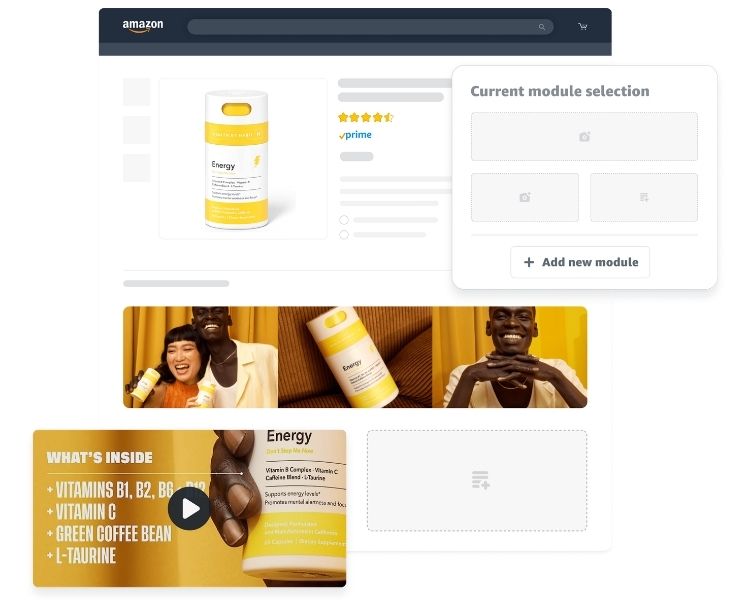
Amazon A+ Content is a feature designed for brand-registered sellers to showcase their products through custom visuals and text. This tool, formerly called Enhanced Brand Content (EBC), helps sellers present their product’s distinct qualities while communicating their brand identity to shoppers.
Sellers can choose from various pre-designed modules and customize them with their own images and written content. This flexibility allows them to provide detailed information about product benefits, explain their company values, and demonstrate different ways customers can use the product.
The content types available include brand logos, high-quality product photography, lifestyle images, banners, infographics, slideshows, product carousels, 360-degree views, and comparison tables. These elements appear on the product page directly below the bullet points section.
Depending on the category and device type (desktop or mobile), this enhanced content either supplements or replaces the standard product description.
The Importance of A+ Content for Amazon Sellers
A+ Content plays a crucial role in driving product success on Amazon through several key advantages:
- Differentiation from competitors: While standard elements like titles, bullet points, and descriptions follow similar formats across all listings, A+ Content offers sellers the only opportunity to showcase what makes their product and brand unique to potential buyers.
- Proven sales impact: Amazon data shows that well-designed A+ Content increases sales by 3% to 10% on average. This enhancement helps customers make informed purchase decisions through engaging visuals and detailed information.
- Reduced returns and negative reviews: Comprehensive product information allows shoppers to fully understand what they’re buying before checkout. This transparency leads to fewer disappointed customers and lower return rates.
- Enhanced customer connection: Brands can address customer pain points, demonstrate real-world solutions, and provide compelling reasons to complete the purchase. This approach builds trust and strengthens the relationship between sellers and buyers.
- Proactive customer support: Strong A+ Content answers common questions before they arise, improving customer engagement and reducing the need for post-purchase inquiries.
Types of Amazon A+ Content Available
Amazon offers three distinct tiers of A+ Content to help sellers enhance their product listings.
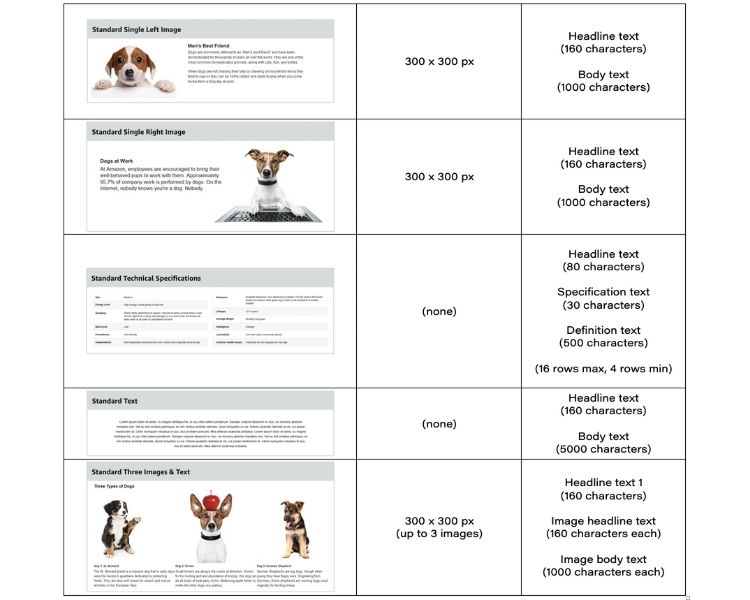
Standard A+ Content
Standard A+ Content allows sellers to build product descriptions using up to five modules per ASIN. These modules include brand logos, various text and image layouts, product comparison charts, and technical specification tables.
Through this flexibility, sellers can select templates that match their design needs and combine different module types to create comprehensive product pages.
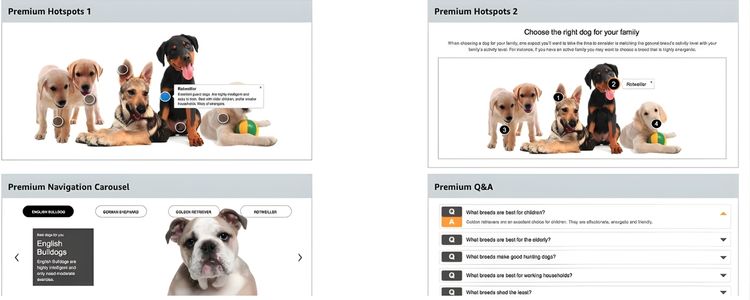
Premium A+ Content Options
Premium A+ Content provides access to enhanced features, including larger images, interactive carousels, and hotspot modules. With this tier, sellers can use up to seven modules per product description, incorporating standalone videos, clickable image galleries, Q&A sections, and interactive elements.
To qualify for this option, sellers must publish Brand Story across all eligible ASINs and have at least 15 approved Basic A+ Content pieces in the relevant store within the past year. Once eligible, sellers will see a notification banner in the A+ Content Manager confirming their access.
Brand Story Feature
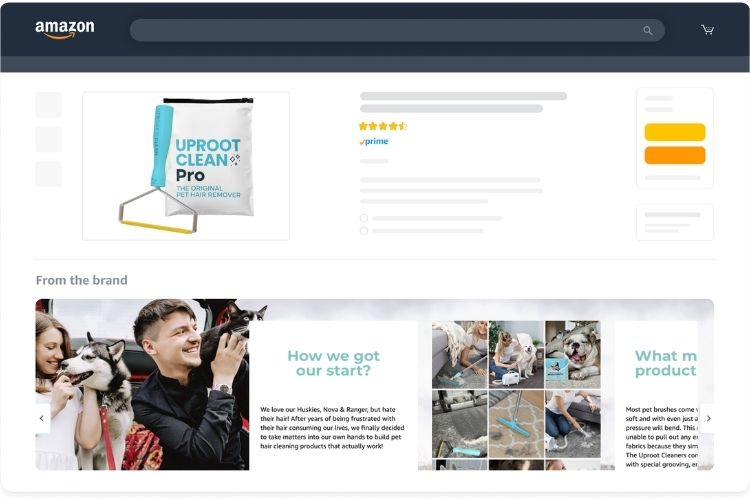
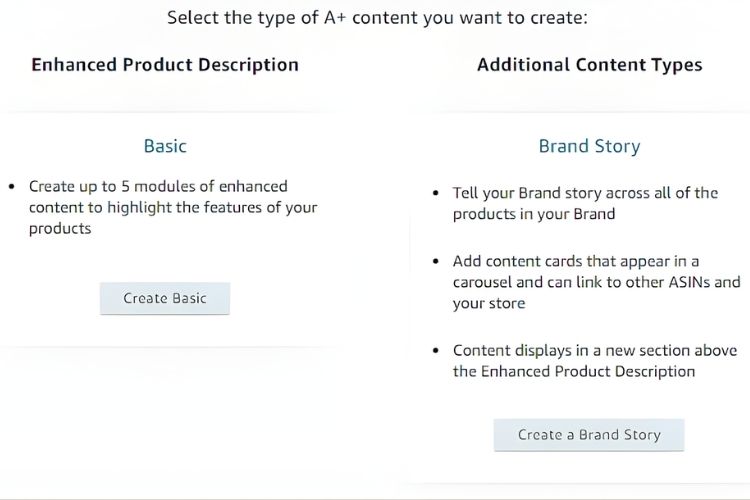
Available to both Basic and Premium users, Brand Story appears in a separate “From the Brand” section on product pages. This feature uses up to 19 modules arranged in a clickable carousel format to showcase brand identity and mission.
Through these modules, sellers can include brand logos, descriptions, images, Q&As, and product links to promote cross-selling and direct traffic to their Amazon storefront. While Brand Story can be created independently, pairing it with A+ Content creates more compelling product presentations.

Key Points for A+ Content Creation
Publishing A+ Content replaces the original plain text description, so sellers must ensure all important information transfers to the new format. Additionally, associated vendors may add content in the “From the Manufacturer” section, which can prevent seller submissions or replace seller content to avoid redundancies.
After submission, Amazon reviews the content within seven business days, and approved content goes live within 24 hours, though processing times may vary. Currently, A+ Content is not available for books, music, and DVD categories.
Best Amazon A+ Content Examples to Learn From
Here are three standout examples demonstrating effective A+ Content strategies:
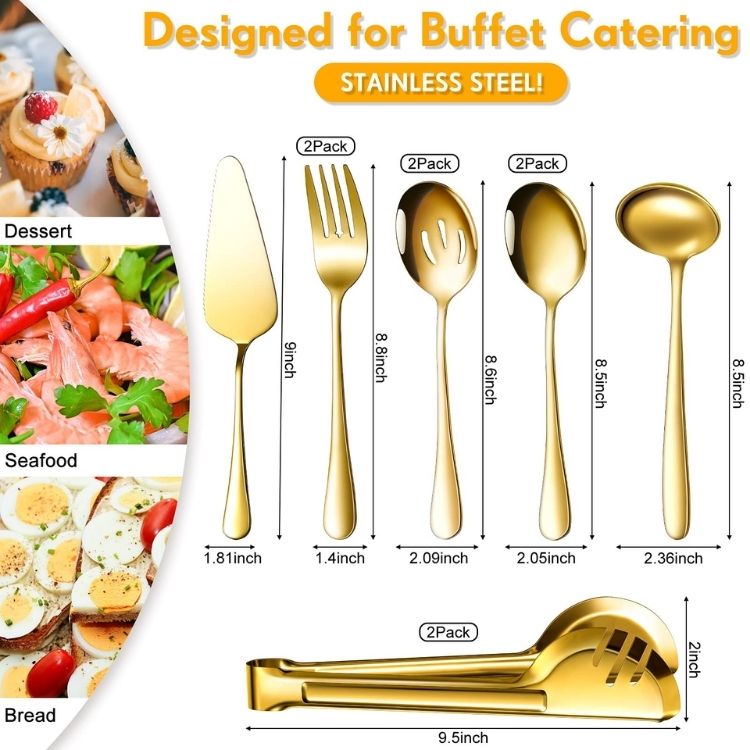
Patelai 5-In-1 Slotted Spoon
The multi-functional cooking utensil combines a cutter, spatula, spoon, colander, and turner into one tool. Its A+ Content showcases in-action images that clearly demonstrate each specific use case.
Additionally, the design includes arrows pointing to different parts of the utensil with corresponding function labels. Despite minimal text usage, the visual storytelling effectively communicates all essential information to shoppers.
Mighty Patch
Mighty Patch opens with an attention-grabbing slogan, “Don’t pop it, patch it” displayed prominently in the banner section. The content also features logos highlighting third-party endorsements that build product credibility.
The standout elements include a Product Lifestyle section that cross-sells other brand offerings by showing which skin problems each product addresses. Following this, a detailed comparison chart lists all available products, making it easy for customers to choose the right option.

LifeStraw Personal Water Filter
A powerful banner image leads the content, immediately conveying the product’s purpose and functionality. By featuring a young boy using the filter, the visual communicates safety and ease of use.
Further down, the content reveals the brand’s Certified B Corporation status and explains how proceeds from each sale support a cause directly aligned with the product’s mission. Through this purpose-driven messaging, customers may find compelling reasons to choose this product over competing options.

Step-by-Step Guide to Creating Amazon A+ Content
Follow this structured workflow to create, optimize, and publish your A+ Content from initial setup to final approval.
Step 1: Access the A+ Content Manager
To begin creating A+ Content, navigate through your seller account with these steps:
- Log in to your Amazon Seller Central account
- Go to the main menu and select Advertising, then click on A+ Content Manager
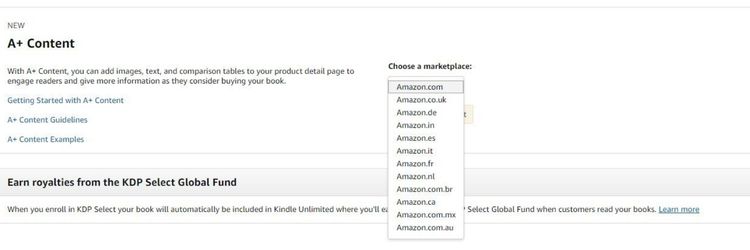
- Choose your target marketplace from the available options
- Click the Manage A+ Content button to access the content creation interface
Step 2: Fill in Required Fields
Once inside the A+ Content Manager, sellers follow these steps to begin building your content:
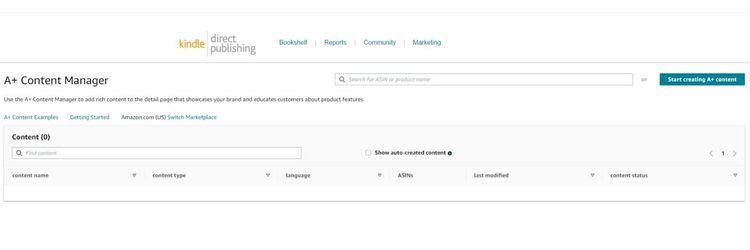
- Click the “Start creating A+ content” button located in the top-right corner
- Wait for the system to redirect you to the Content Details page
- Fill in the “Content name” field with your chosen title
- Select the appropriate “Language” for your target marketplace
- Explore the available customization options to find the best module combinations for your product
Amazon provides considerable flexibility in content creation, so you can experiment with different layouts and features to showcase your product effectively.
Step 3: Create Modules
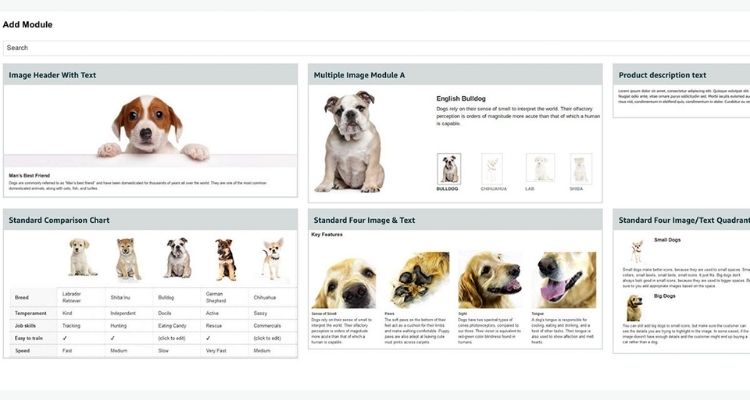
After completing the required fields, click the “Add Module” button to access the content building options. Amazon provides a comprehensive selection of module types, each designed for specific content purposes:
Image-focused modules:
- Company Logo: Displays your brand logo in a 600×180 pixel space, smaller than standard image modules
- Image Header with Text: Features a banner image with accompanying text below, ideal for page introductions
- Single Left Image: Places an image on the left side with text content on the right
- Single Right Image: Positions an image on the right side with text content on the left
- Multiple Image Module A: Creates a clickable image gallery to showcase different product angles or features
Image and text overlay modules:
- Image and Dark Text Overlay: Combines a large image with text overlay using a dark background for contrast
- Image and Light Text Overlay: Similar to the dark version, but uses a light background overlay
Multi-image layouts:
- Four Image & Text: Arranges four images with accompanying descriptions, perfect for highlighting key features
- Four Image/Text Quadrant: Displays four images and text in an alternative quadrant arrangement
- Three Images and Text: Shows three images with descriptive text beneath each one
Enhanced information modules:
- Single Image and Highlights: Combines an image with formatted bullet points for key product benefits
- Single Image and Sidebar: Includes an image with a sidebar section for additional detailed information
- Single Image and Specs Details: Pairs an image with a technical specifications section for product details
Comparison and specification modules:
- Comparison Chart: Creates tables comparing multiple products within your own brand catalog (competitor products cannot be included)
- Technical Specifications: Provides a structured table format for listing detailed technical information
Text-only modules:
- Product Description Text: Offers a left-aligned text section for detailed product descriptions
- Text: Provides a centered heading and text field for simple content blocks
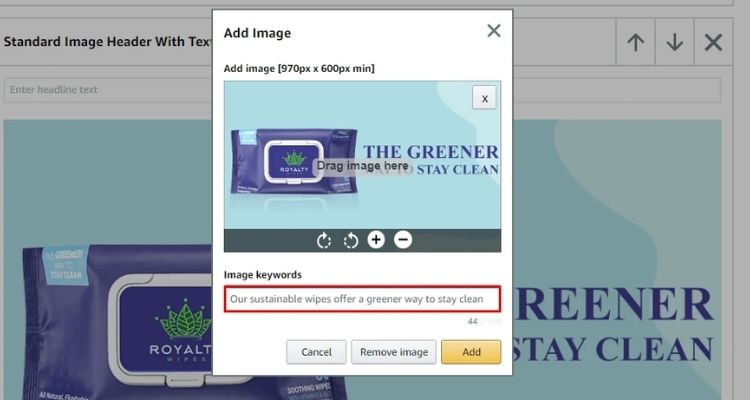
Step 4: Add Images and Text
With your module layout selected, the next phase involves uploading visual assets and writing compelling copy. Amazon does not provide pre-made content templates, so sellers must create their own materials following best practices for product marketing.
Apply these proven design and copywriting principles to maximize your A+ Content effectiveness:
- Use professional, brand-aligned imagery: Ensure all images are high-quality and accurately represent your product category and target audience
- Write concise, focused descriptions: Keep text brief and deliver key messages without unnecessary elaboration
- Employ action-oriented language: Use strong verbs and persuasive phrases that encourage customers to make a purchase decision
- Share your brand narrative: Help customers connect with your story and understand what makes your products unique
- Review and refine thoroughly: Check all content for accuracy, clarity, and consistency before submission
Amazon provides recommended examples within the platform that you can reference for inspiration. Additionally, specific content guidelines outlined in later sections will clarify what information should be avoided to ensure approval.
Step 5: Apply ASINs
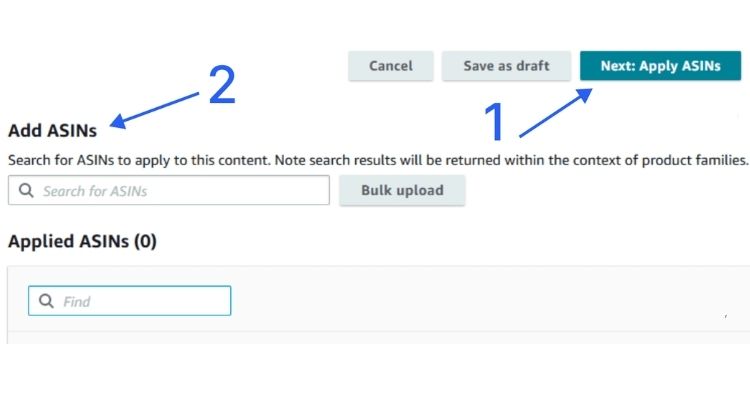
After finalizing your module content, click the “Next: Apply ASINs” button to proceed to the product assignment stage. In this section, you can link your newly created A+ Content to specific product listings through the following actions:
- Search or input your ASIN: Use the search function to find your product by name, or directly enter the ASIN code
- Add multiple products: Apply the same A+ Content across multiple ASINs that share similar features or belong to the same product line
- Verify content alignment: Ensure the A+ Content matches appropriately with each selected product listing
- Include all formats: Remember to add ASINs for both digital and physical versions of your product, such as eBooks and paperback editions
Step 6: Review and Submit
Once you complete all module configurations, use the preview function to check how your A+ Content will appear on the product page. If you notice any formatting issues or errors, navigate back to make necessary adjustments.
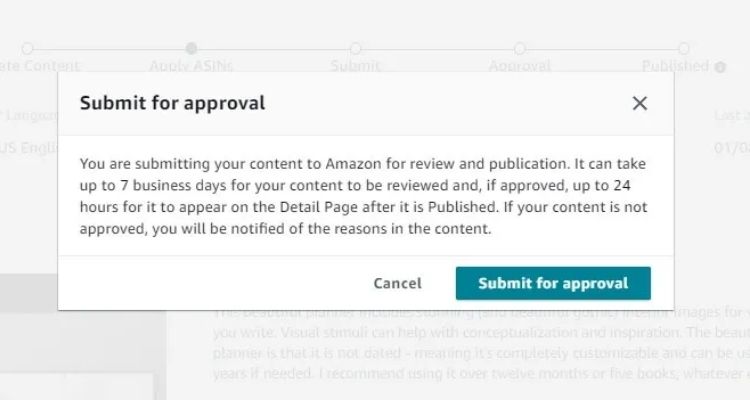
After confirming everything meets your standards, click “Submit for approval” to send your content to Amazon’s review team. Amazon typically processes submissions within seven business days, and approved content goes live on assigned product listings within 24 hours.
Amazon A+ Content Rules and Requirements
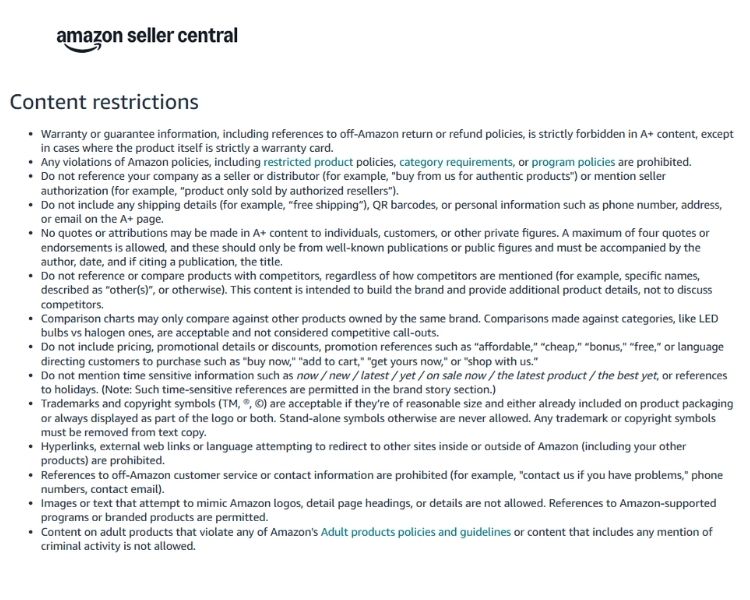
While A+ Content offers creative freedom, Amazon enforces strict guidelines to maintain quality standards across the platform. Violating these rules can result in content rejection, so understanding the restrictions before creating your modules is essential.
Sellers must comply with the following key requirements:
- Pricing and promotional restrictions: A+ Content cannot include product prices, discount information, or promotional language such as “bonus”, “free”, “limited time”, or similar terms. Additionally, time-sensitive phrases like “buy today” or “on sale now” are prohibited.
- Review and testimonial limitations: Customer reviews from your product listings cannot be featured in A+ Content. However, you may include endorsements from recognized publications, industry experts, or public figures with proper attribution.
- Intellectual property requirements: All visual elements, including images, logos, icons, and graphics, must be owned by you or properly licensed for commercial use. Furthermore, any awards, certifications, or credentials mentioned must be verifiable upon Amazon’s request.
- Claims and comparative statements: Avoid making unsubstantiated claims such as “#1 rated,” “best-selling,” or any health-related benefits that lack scientific backing. These boastful statements require concrete evidence that most sellers cannot provide.
- External link prohibition: A+ Content cannot contain hyperlinks to external websites, social media profiles, email signup forms, or any destination outside Amazon’s ecosystem. This includes directing customers to your own website or newsletter, even for legitimate business purposes.
Amazon provides comprehensive content guidelines documentation that covers additional restrictions beyond these core rules. Reviewing the complete guidelines thoroughly before submission helps avoid common mistakes and ensures faster approval times.
Measuring and Analyzing A+ Content Results
Monitoring performance metrics helps sellers determine whether A+ Content delivers positive business outcomes. Unit Session Percentage serves as a key indicator, revealing how effectively your product page converts visitors into buyers.
Evaluate content effectiveness by comparing Unit Session Percentage and traffic data from periods before and after launch. Access these reports through Seller Central by navigating to Reports, then Business Reports.
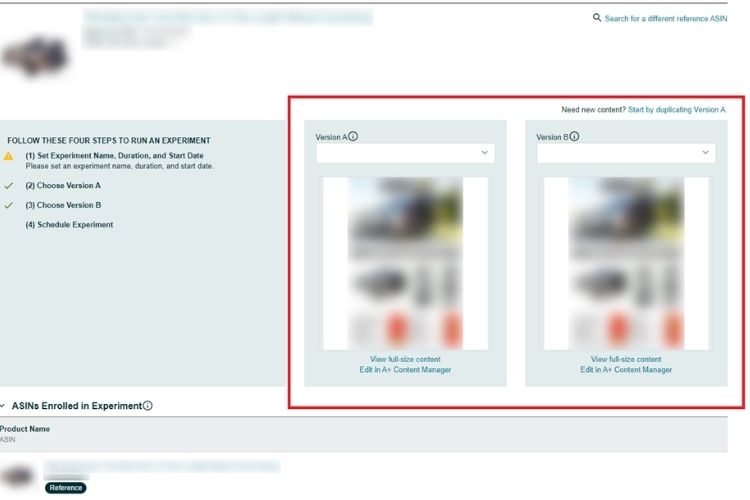
Amazon’s Manage Your Experiments tool enables A/B testing between different content versions. This feature allows brands to compare layouts, messaging, and visuals to identify which combination drives better performance, replacing guesswork with data-driven decisions.
Tips for Optimizing Enhanced Brand Content
Based on real case studies and performance data from successful Amazon sellers, here are three proven optimization strategies:
Use Lifestyle Images and Avoid Generic Stock Photos
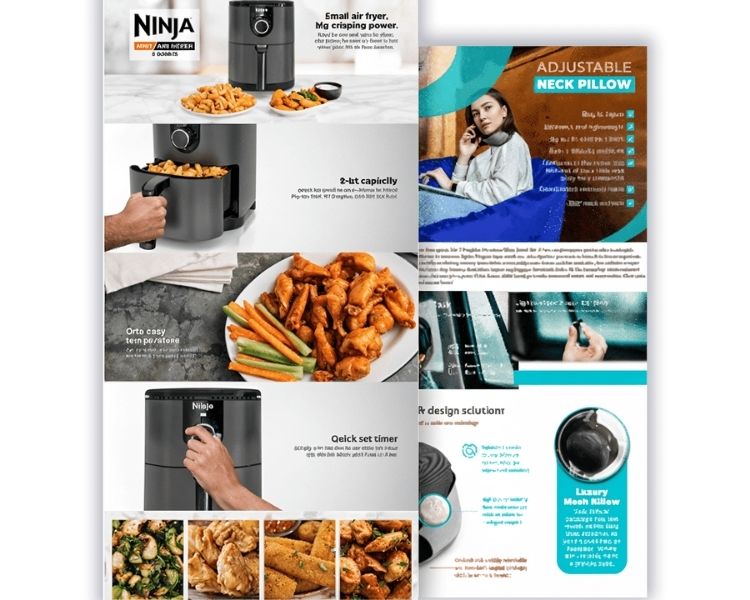
Customers can quickly identify generic stock photography versus authentic brand imagery, and this distinction significantly impacts trust and purchasing decisions. Lifestyle images showing real people using products in genuine settings create stronger emotional connections than sterile studio shots or obvious stock photos.
To implement authentic visual content effectively, sellers should focus on these key elements:
- Use real-world settings that demonstrate actual product usage rather than posed studio environments
- Feature diverse, relatable people that reflect your target customer demographics
- Show the product solving specific problems or fitting seamlessly into daily routines
- Capture genuine emotions and natural interactions rather than overly staged scenarios
Optimize for Mobile Devices
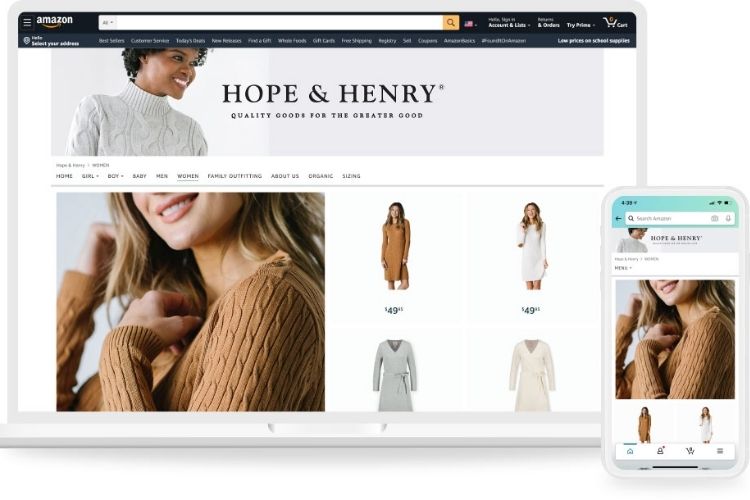
With over 60% of e-commerce traffic coming from mobile devices, A+ Content must display effectively on smaller screens. Many sellers design content on desktop without checking mobile appearance, resulting in unreadable text and awkward layouts.
Ensure your content performs well on mobile by applying these optimization techniques:
- Use Amazon’s responsive module designs like “three images across” or “four images across.”
- Ensure text size remains legible when scaled down
- Avoid placing critical information in areas that might get cut off on mobile
- Test your content on actual mobile devices before publishing
Include Detailed Size Guides and Comparison Charts
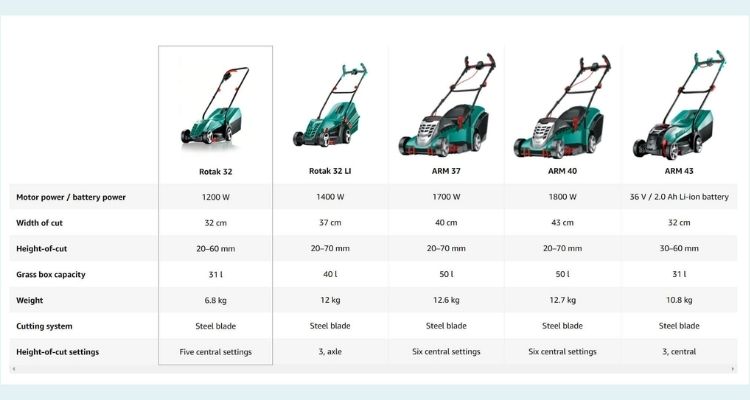
Product sizing confusion is a major cause of returns and negative reviews, particularly in categories like apparel, pet supplies, and home goods. Adding visual size charts directly addresses customer concerns before purchase.
Sellers can reduce returns and increase conversions by implementing these visual elements:
- Create size charts in large format (970×600 pixels minimum)
- Show products in a real-life context with actual dimensions
- Include comparison charts highlighting differences from competitors
- Add texture, close-ups and usage visuals for clarity
FAQs About Amazon A+ Content
Amazon A+ Content is exclusively available to brand-registered sellers and vendors enrolled in Amazon Brand Registry. Third-party sellers cannot use this feature for products without brand ownership rights.
Yes, Amazon reports conversion rate increases of 3% to 10% on average. Real-world results range from 5% to 38%, depending on content quality, while also reducing return rates through better product information.
Basic A+ Content offers up to five modules with images, text, and comparison charts at no cost. Premium provides seven modules with advanced features like videos, interactive hotspots, and carousels, requiring Brand Story publication and 15 approved Basic A+ pieces.
Get Professional Help from Megaficus
Understanding Amazon A+ Content and implementing it effectively gives sellers a competitive advantage in converting browsers into buyers. By using high-quality visuals, comparison charts, and compelling storytelling, sellers can differentiate their products, build customer trust, and achieve measurable conversion improvements beyond generic product descriptions.
Success with A+ Content requires continuous optimization through A/B testing, mobile responsiveness, and compliance with Amazon’s guidelines. When designed and maintained properly, it becomes a powerful sales driver delivering long-term results rather than a one-time setup.
If you need expert support to create optimized A+ Content or scale your Amazon business with proven strategies, Megaficus provides hands-on guidance to help sellers maximize listing performance and achieve sustainable growth.