
Are you burning thousands of dollars on Amazon ads that don’t convert? An Amazon PPC audit systematically identifies budget leaks, eliminates underperforming keywords, and optimizes bids to cut ACoS by 15-30% while boosting profitable sales. Megaficus reveals the complete audit process that transforms wasted spend into revenue in this article.
Quick Summary
- Amazon PPC Audit is a systematic review of Amazon ad campaigns to identify wasted spend and optimize key metrics like ACoS, CTR, ROAS, helping cut costs and redirect budget to profitable keywords and ASINs.
- How Often Should You Audit Your Amazon PPC: High-spend or competitive accounts should audit monthly, most sellers quarterly, and always after major sales events or new product launches.
- 7 steps to conduct an Amazon PPC audit:
- Review PPC performance metrics
- Evaluate campaign structure
- Audit your ad groups
- Check your ad targeting
- Analyze your keyword targeting
- Review the product listings used in ads
- Optimize your bids
- Checklist for conducting an Amazon PPC audit: A step-by-step framework covering metrics tracking, structure review, keyword optimization, placement analysis, listing checks, and budget allocation.
- Common Amazon PPC mistakes found during an audit: Overspending on non-converting keywords, weak negative keyword usage, ignoring placement bid adjustments, and failing to test ad creatives.
What An Amazon PPC Audit Is?
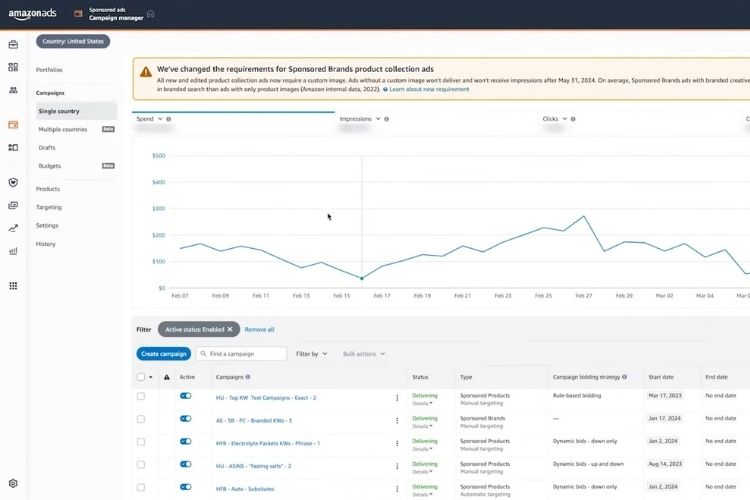
An Amazon PPC audit is a systematic review process that evaluates your advertising campaigns performance and spending efficiency. It analyzes critical metrics like ACoS, CTR, and ROAS to identify where your budget is being wasted and which strategies actually generate sales.
A focused audit delivers three immediate improvements:
- Cut Advertising Costs: Eliminate non-converting keywords, adjust bids based on performance data, and redirect budget to proven winners.
- Drive More Clicks: Optimize ad copy and keyword placement to attract qualified shoppers where they actually engage.
- Maximize Revenue: Concentrate investment on high-performing ASINs and keywords that consistently deliver sales.
Why Should You Run An Amazon PPC Audit?
Managing PPC without audits means wasting budget on guesswork instead of proven strategies. Here’s how regular reviews protect your investment and drive results:
- Eliminate budget waste: Identify underperforming ASINs, ineffective placements, and irrelevant keywords draining your spend.
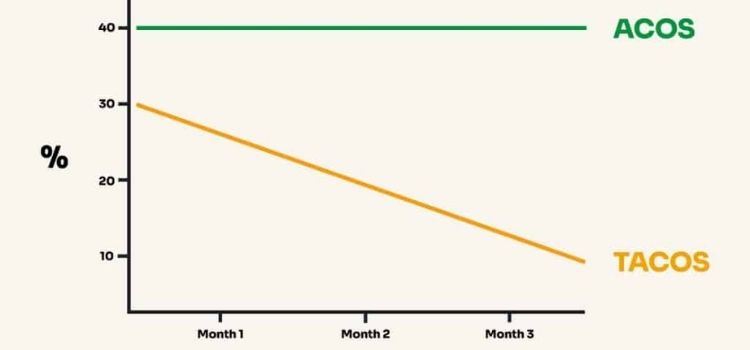
- Optimize long-term profitability: Ensure your ACoS and TACoS support sustainable growth, not just short-term revenue spikes.
- Uncover growth opportunities: Discover high-converting search terms you can scale profitably.
- Boost organic visibility: Reveal how your paid and organic keyword strategies align to strengthen search rankings.
- Enable confident scaling: Build organized campaign structures that handle larger budgets efficiently.
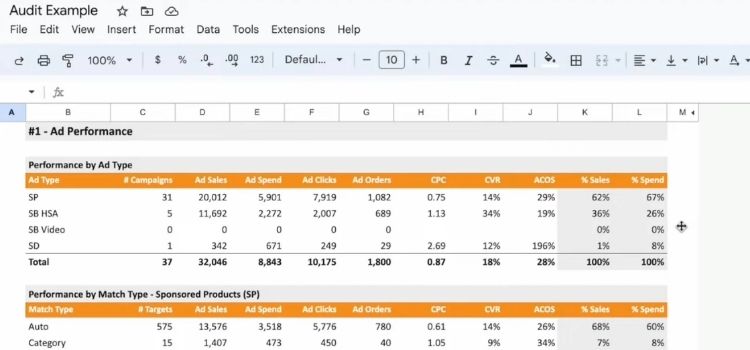
How Often Should You Audit Your Amazon PPC?
Your audit frequency depends on campaign complexity and advertising budget. Here’s the recommended schedule for you:
- Monthly Reviews: Run audits every month if you operate in highly competitive categories or spend over $10,000 monthly on ads. This frequency catches performance shifts before they drain significant budget.
- Quarterly Checkups: Most sellers benefit from thorough reviews every 3 months as part of standard campaign maintenance. This interval balances optimization effort with actionable data collection.
- Event-Triggered Audits: Always review campaigns immediately following major sales events like Prime Day or Black Friday, plus after launching new products.
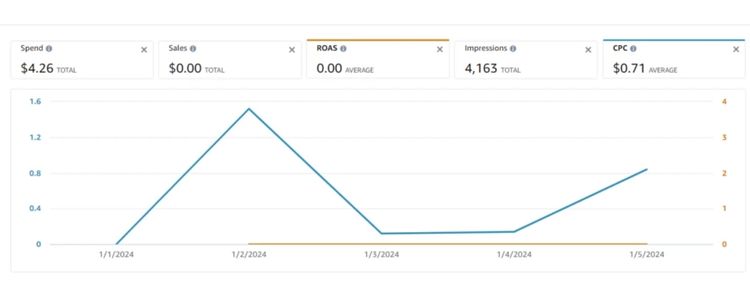
How To Conduct An Amazon PPC Audit In 7 Steps
To identify wasted ad spend and improve ACoS effectively, you need a structured audit process that evaluates performance data, campaign setup, targeting, and bids in a logical, step-by-step order.
Step 1: Review Your Amazon PPC Performance Metrics
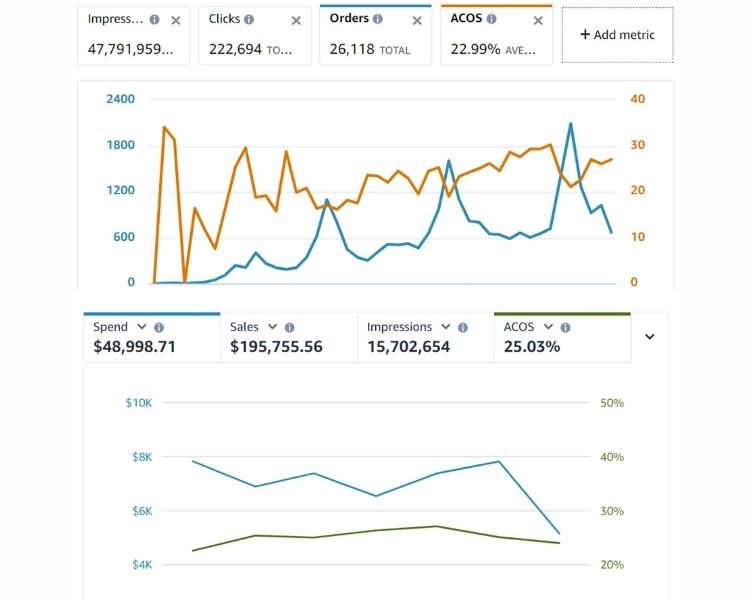
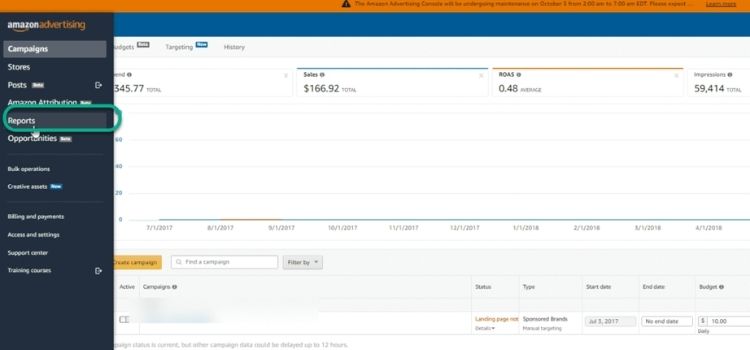
You need to begin by collecting essential campaign data: CTR, CPC, impressions, clicks, ACoS, ROAS, conversion rate, and sales. To streamline this process, you should download the Performance Over Time report from Seller Central to view all metrics in one place.
Evaluate high-level account health with these benchmarks:
- ACoS: Healthy range is 20-30%, though this varies by margin (10-50% depending on goals)
- TACoS: Should stabilize or decline for mature products; temporary increases are normal during launches
- Conversion Rate: Compare against category averages (e.g., 5% for books, 12% for supplements)
You compare performance across 30, 60, and 90-day periods to spot trends. If ACoS rises while TACoS stays flat, your ads aren’t driving organic growth effectively.
Your analysis timeframe depends on your campaign targeting method:
- Automatic Targeting: Minimum 2 weeks of data.
- Manual Targeting: 2 weeks for keywords with 1000+ monthly searches; 30-60 days for lower-volume terms.
- Seasonal Products: Set separate benchmarks for peak vs. off-peak periods (e.g., winter apparel performs differently in December vs. July).
Step 2: Evaluate Your Campaign Structure
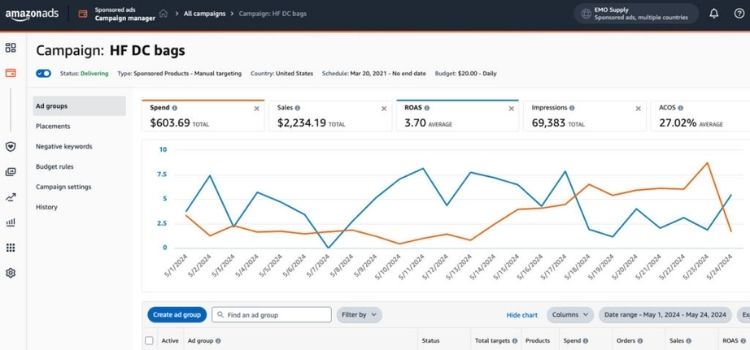
After gathering data, you need to assess your campaign structure by checking for these common issues that waste budget:
- Segmentation: Are campaigns organized by product category, match type, or objective (defense, conquesting, scaling)?
- Duplication: Do multiple campaigns compete for the same keywords, driving up CPCs?
- Budget Hierarchy: Are priority campaigns fully funded before secondary ones?
You use clear, descriptive names like “Kitchen Blenders – Budget Models – Manual Targeting” so anyone understands the campaign’s focus instantly. If you find “Premium Food Processors” inside a Blenders campaign, that’s a structural problem; consolidate duplicate campaigns and ensure each has a singular purpose.
Step 3: Audit Your Ad Groups
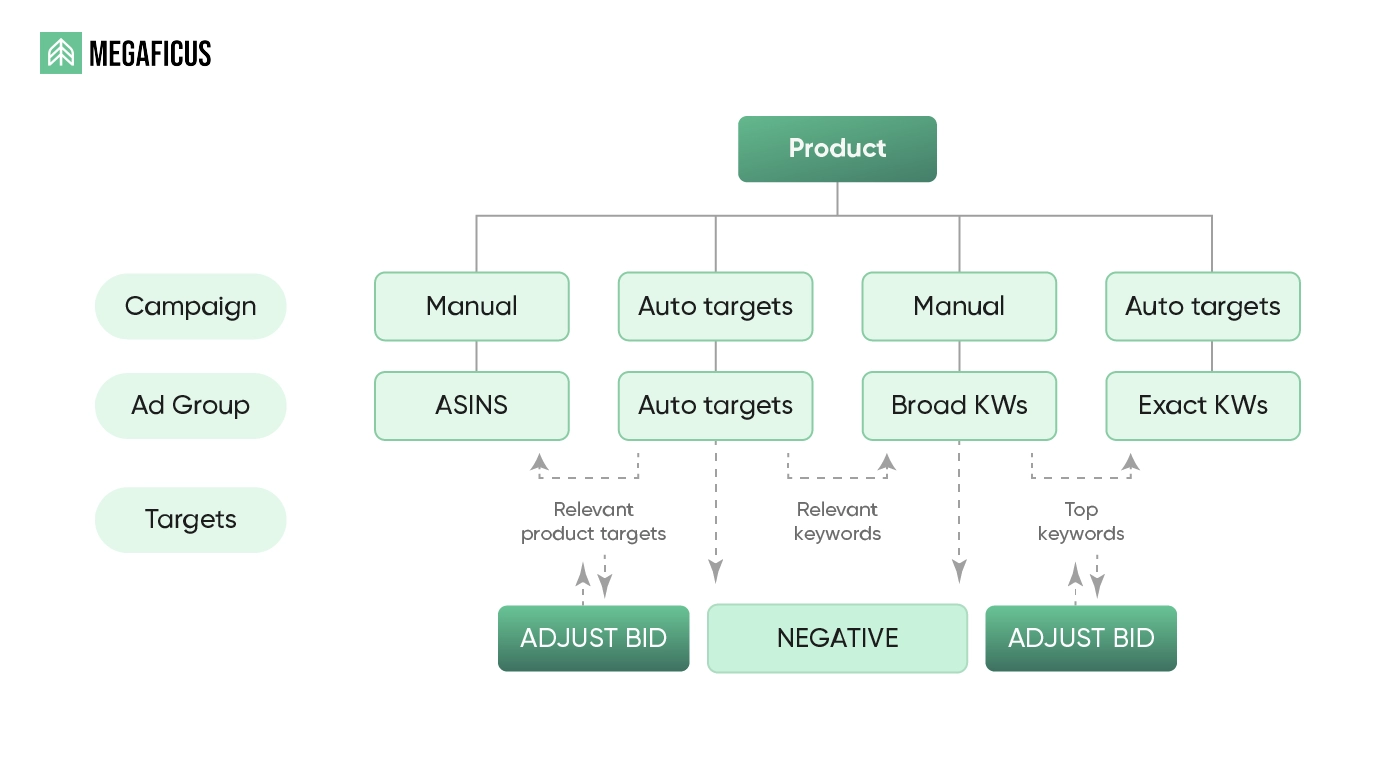
Ad groups function like subfolders that categorize related products. You need to verify that groups within each campaign truly belong together, as unrelated groups create targeting conflicts and waste spend.
To illustrate proper structure, consider this example of well-organized campaigns:
- “Kitchen Appliances – Blenders – Automatic Targeting”:
- Personal Blenders
- Countertop Blenders
- High-Performance Blenders
Step 4: Check Your Ad Targeting
You should review which targeting method each campaign uses:
- Automatic Targeting: Amazon selects keywords based on your listing
- Manual Targeting: You control specific keywords for greater precision
Amazon recommends starting new campaigns with automatic targeting, but switching to manual often improves returns. Manual targeting lets you add negative keywords to block irrelevant searches. If you sell premium leather wallets, add “cheap” and “wholesale” as negatives to avoid bargain shoppers.
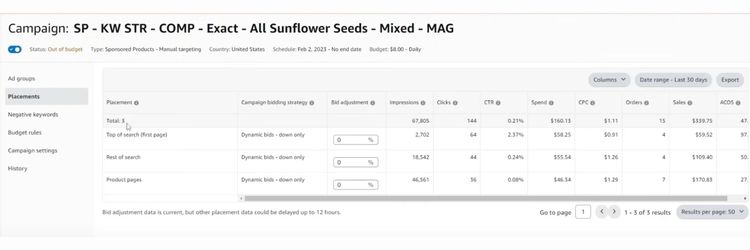
You should check where your ads appear (Top of Search, Product Pages, Rest of Search) by reviewing your placement reports. Based on this data, you need to increase bids for profitable placements while reducing or pausing poor performers to improve efficiency without changing keywords.
Step 5: Analyze Your Keyword Targeting
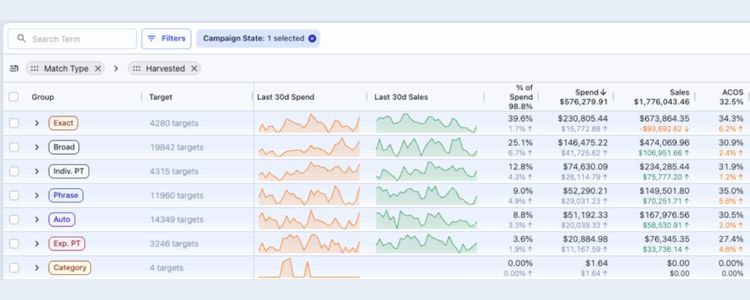
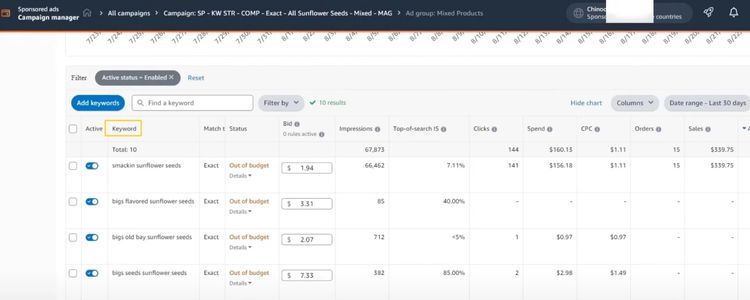
Access your Search Term report in Seller Central to review match type, impressions, clicks, CTR, CPC, spend, and sales. Identify these problems:
- High impressions, zero clicks: Ad doesn’t match shopper intent, add to negative keywords
- High clicks, no sales: Listing needs optimization or wrong audience—add to negative keywords
- Duplicate search terms: Same keyword across multiple match types wastes budget
Formula:
Wasted Spend = Total Ad Spend – (Orders × Net Profit per Order)
For example, if your campaign spent $500 and generated 10 orders with $30 profit per order, you can calculate wasted spend as follows:
- Spend: $500
- Orders: 10
- Profit per order: $30
- Efficient Spend = 10 × $30 = $300
- Wasted Spend = $200
You should promote high-converting search terms from auto/broad campaigns into exact match campaigns. Then, you need to prioritize keywords with high sales and low CPC, as these deliver strong ROI and deserve continued investment.
Step 6: Review The Product Listings Used In Ads
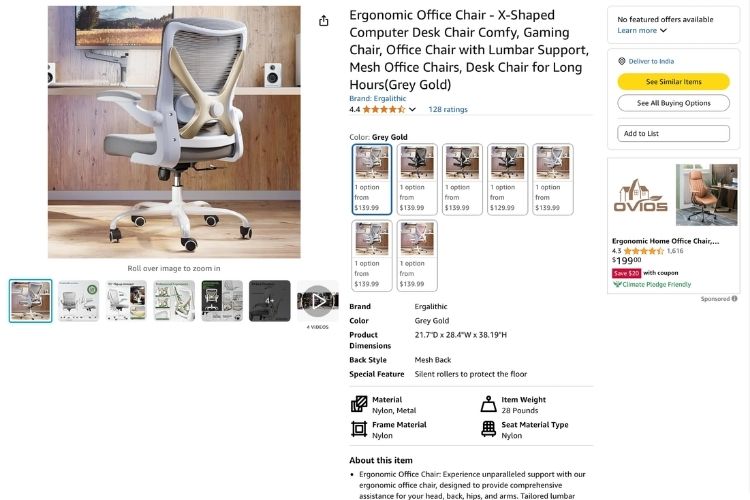
If keywords generate clicks but no purchases, your listing needs improvement, not your targeting. You should then compare your listing against top competitors to identify specific weaknesses.
You should audit these key elements in your listing:
- Images: Update blurry photos, add lifestyle shots
- Bullet Points: Highlight key benefits, answer common questions
- Price Competitiveness: Higher prices reduce conversion
- Availability: Out-of-stock products waste ad spend
Suppose your conversion rate is significantly below category average (e.g., <5% for books, <12% for supplements), you should improve your listing before scaling ads. Additionally, better listings boost both PPC and organic rankings because when conversion rates increase, Amazon ranks you higher in search results.
Step 7: Optimize Your Bids
The final step involves adjusting keyword bids for maximum profitability. Remember that automatic campaigns use one bid per ad group, while manual campaigns assign individual bids to each keyword for better control.
Formula Maximum Profitable CPC: Max CPC = (Profit per Order × Target ACoS%) ÷ Conversion Rate
For example, if your profit per order is $50, target ACoS is 25%, and conversion rate is 10%, you can calculate as follows:
- Profit per order: $50
- Target ACoS: 25%
- Conversion Rate: 10%
- Max CPC = ($50 × 0.25) ÷ 0.10 = $12.50
Based on these calculations, you should take these bid optimization actions:
- High-spend, low-conversion keywords: Lower bids or pause
- High-ROI keywords: Increase bids to capture more traffic
- Cost-prohibitive keywords: If they show strong buyer intent but exceed target ACoS, optimize your listing first; otherwise, lower bids or add to negative keywords
Checklist For Conducting An Amazon PPC Audit
Use this comprehensive checklist to streamline your Amazon PPC audit process and ensure you don’t miss critical optimization opportunities:
- Track ACoS and TACoS trends across 30, 60, and 90-day periods
- Evaluate campaign organization and eliminate duplicate structures
- Analyze your top 10 highest-spending campaigns for ROAS performance
- Download search term data to add negative keywords and promote top performers
- Determine inefficient spend for each campaign using the wasted spend formula
- Measure actual CPC against the maximum profitable CPC threshold
- Assess ad performance across Top of Search, Product Pages, and Rest of Search placements
- Check conversion rates by ASIN and optimize underperforming listings
- Review budget allocation to identify overspending or budget caps
- Evaluate new-to-brand customers versus repeat buyers to measure audience quality
Common Amazon PPC Mistakes Found During An Audit
During an Amazon PPC audit, recurring mistakes often surface that quietly drain budget and limit performance, making it critical to identify and fix them before scaling ad spend.
Overspending On Poor-Performing Keywords
Many sellers waste 30-40% of their ad budget on keywords that generate clicks but zero sales. This happens when you don’t regularly check which keywords are draining your budget without converting.
To solve this problem, you need to review your Search Term Report weekly for campaigns spending over $500/month. Pause any keyword that has accumulated 50+ clicks with 0 orders, or has an ACoS exceeding 60% after 30 days.
For example, if “cheap wireless earbuds” generated $120 in spend with 0 sales, add it to your negative keyword list immediately.
Calculate your wasted spend using:
Total Ad Spend – (Orders × Net Profit per Order)
This shows exactly how much you’re losing on non-performers.
Not Using Negative Keywords Effectively
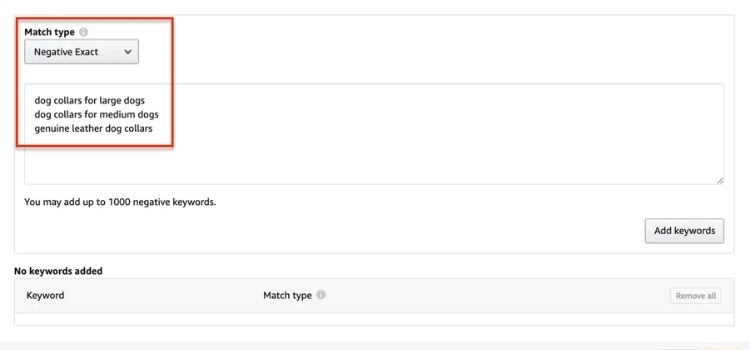
Without negative keywords, your ads waste 20-30% of your budget appearing in irrelevant searches like “free”, “used”, or “wholesale” when you sell new, premium products. This drain is spent on shoppers who will never buy from you.
You can fix this by reviewing your Search Term Report bi-weekly to identify and add terms generating 10+ clicks with 0 orders as negative keywords. For example, if you sell premium leather bags and a “cheap bag” drove 25 clicks ($18 spent) with no sales, add “cheap” as a campaign negative keyword immediately.
Focus on common low-intent terms like “DIY”, “replica”, “knockoff”, “clearance”, or brand names you don’t sell. This filtering ensures your budget targets only qualified buyers willing to pay your price point.
Ignoring Placement Bid Adjustments
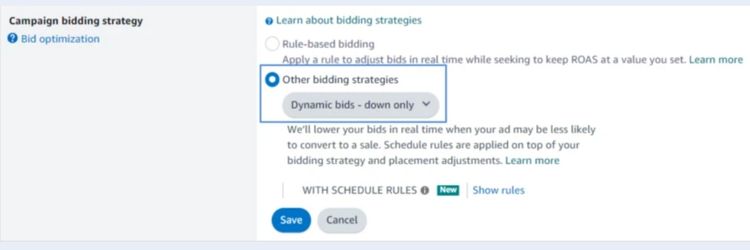
Many sellers use default placement settings, which means you’re bidding the same amount whether your ad appears at Top of Search (high visibility, high conversion) or buried in Rest of Search (low visibility, poor performance). This wastes 15-25% of your budget on placements that rarely convert.
You can fix this by reviewing your Placement Report monthly to identify which placements drive the most sales at the lowest cost. If Top of Search delivers 70% of orders with 20% ACoS while Product Pages shows 5% conversion with 45% ACoS, increase your Top of Search modifier to 50-100% and reduce Product Pages to 0-25%.
Not Testing Ad Creatives
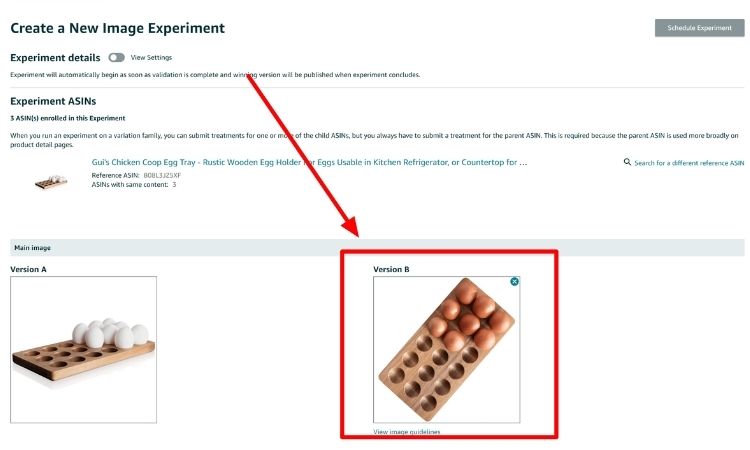
A common oversight is launching ads with one creative and never testing variations, which leaves 10-20% potential performance improvement on the table. Without testing different product images, titles, or ad copy, you’re running campaigns based on guesswork rather than data.
The solution involves running A/B tests on one element at a time for at least 2-3 weeks to gather statistically significant data. For example, test two product main images (lifestyle shot vs. white background) and track which drives higher CTR.
If the lifestyle image increases CTR from 0.3% to 0.5% and conversion rate from 8% to 12%, make it your primary creative. When testing, focus on high-impact elements like the main image, product title, and bullet points. You should then declare a winner when one variation shows at least 20% improvement with 100+ clicks per variation.
>>> Read more: Master Amazon Digital PPC: A Starter Guide for New Sellers
Frequently Asked Questions About Amazon PPC Audit
An Amazon PPC audit identifies wasted spend and underperforming keywords, typically reducing ACoS by 15-30% while increasing sales through better targeting.
Monthly for campaigns spending over $10,000/month, quarterly for most sellers, and immediately after major events like Prime Day or product launches.
High ACoS after optimization usually means poor listing conversion rates, overly competitive keywords, bids exceeding profitable thresholds, or uncompetitive pricing. Check your conversion rate first, then audit listing quality before adjusting bids.
Your checklist should cover ACoS/TACoS/ROAS trends, campaign structure review, keyword and negative keyword analysis, bid optimization calculations, placement performance, listing quality assessment, and budget allocation verification.
Get Professional Help from Megaficus
An Amazon PPC audit provides a systematic approach to eliminate wasted spend, optimize campaign structure, and maximize profitability. By regularly reviewing performance metrics, refining keyword targeting, and adjusting bids based on data, you can reduce ACoS by 15-30% while scaling high-performing campaigns.
Success with PPC audits requires consistent execution, clear benchmarks, and a willingness to cut underperformers ruthlessly. Mastering this process ensures every advertising dollar works harder, giving your brand a competitive edge in your category.
If you need expert guidance to conduct thorough PPC audits and optimize your Amazon advertising strategy for maximum ROI, the team at Megaficus is ready to help.