
Tired of buying 5-star junk that breaks in a week or losing the Buy Box because you missed a competitor’s price drop? This Megaficus guide shows you exactly how to compare products on Amazon like a pro (one-click tricks, secret extensions, and pro-level tools) so buyers grab the best deal every time and sellers crush competition without wasting a cent.
Quick Summary
- 4 ways to compare products on Amazon:
- Using Amazon’s built-in compare tool
- Using your shopping cart
- Using browser extensions for comparison
- Create a professional comparison chart on your own website/blog
- Essential Amazon listing factors to check:
- Product specifications & Features
- Customer reviews & Ratings analysis
- Seller reputation & Fulfillment options
- Shipping costs & Delivery times
- Return policies & Warranties
Why Product Comparison Matters On Amazon?
Shopping on Amazon without comparing products is like gambling with your money. Here’s why comparison matters more than ever:
- Protect yourself from counterfeits: Nearly 7 in 10 consumers bought fake items online in 2023, with counterfeit trade at $460B worldwide. Comparison spots red flags: prices 40-70% below market, vague sellers, misleading specs.
- Navigate fake reviews: 43% of bestsellers have unreliable reviews, though Amazon blocked 250M fakes in 2023. Consumers waste $125/year on fake-review purchases.
- Find the best prices: Same products vary 20-50% in price between sellers. Check “Other Sellers” for total costs, including shipping and fees.
- Avoid costly mistakes: Without comparison, you risk outdated models, “professional-grade” hype, or wrong specs. 85% suspect fake reviews, 5 minutes of comparing saves hours of returns.
- Cut through hype: Titles prioritize sales over accuracy. Expect exaggerated features, photoshopped images, and fake discounts. Comparison reveals real specs and verified experiences.
- Shop confidently: With 350M+ products, 43% unreliable reviews, and millions of fakes, comparison validates choices and reveals better alternatives at lower prices.
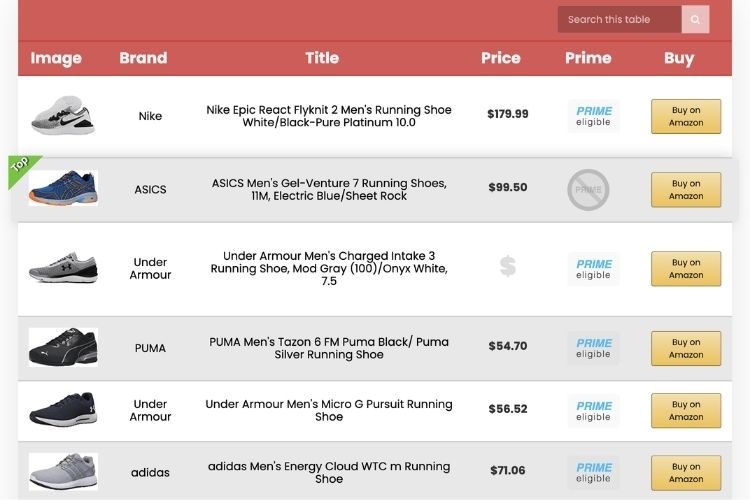
How To Compare Products On Amazon?
These simple yet powerful techniques let anyone quickly compare prices, features, reviews, and hidden details across dozens of listings in seconds.
Using Amazon’s Built-in Compare Tool
Amazon provides a free comparison tool directly on product pages, allowing shoppers to evaluate multiple items without switching tabs or taking notes. Follow these steps to access it:
Step 1: Navigate to any product page
Open Amazon.com (or your country’s marketplace) and search for the item you want to buy. Alternatively, click directly on a product link if you already have one.
Step 2: Locate the comparison section
Scroll down past the product description until you reach the “Compare with similar items” section. This feature typically appears right before the “Product Information” area. If you don’t see this section immediately, look for a “Compare with similar items” link in the product overview box near the top of the page.
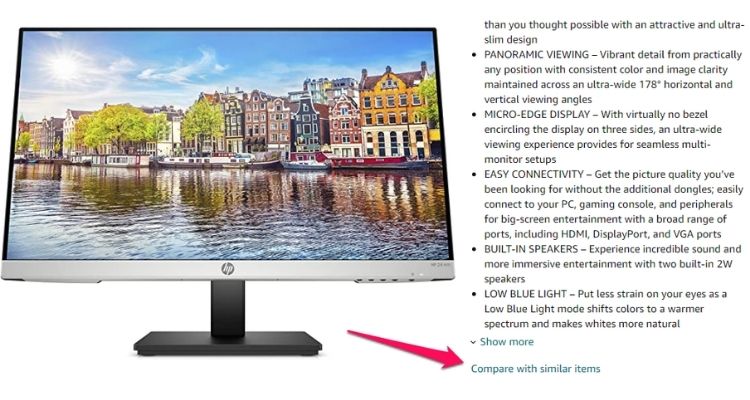
Step 3: Review the comparison chart
Once you find it, the tool displays 4+ similar products side-by-side in a table format. Each product listing includes several key details to help you decide:
- Customer ratings (star rating + total number of reviews)
- Current price and any discounts
- Prime eligibility and shipping options
- Seller name (Amazon direct or third-party)
- Physical specifications (dimensions, weight, material)
For electronics and digital devices, the chart also shows additional technical information such as color options, connectivity types (WiFi, Bluetooth), technology specifications, and special features.
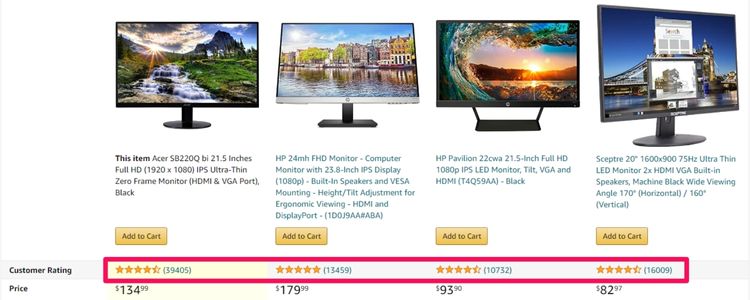
Step 4: Compare and click through
After reviewing the comparison table, click on any product title to open its full listing in a new tab. This allows you to read detailed reviews, check more photos, or add the item to your cart. Some merchants also provide their own in-depth comparison tables with even more detailed specifications beyond Amazon’s standard format.
Using Your Shopping Cart
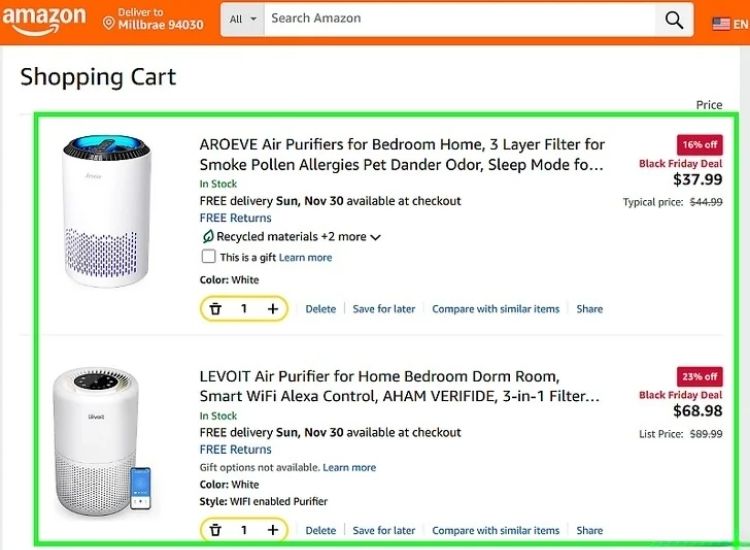
You can compare as many items as you want without buying anything. Just add them to your cart and view them all together:
- Open Amazon.com in your browser or the Amazon Shopping app.
- Search for the first product you want to compare and go to its product page.
- Click or tap Add to Cart.
- Close the pop-up or click Continue shopping and repeat the process for every other product you want to compare (you can add dozens if needed).
- Click or tap the Cart icon (top-right on desktop, bottom bar on mobile).
- All selected products will now appear side by side (or scrollable horizontally on mobile), showing:
- Product image
- Title
- Current price (including any discounts)
- Star rating and number of reviews
- Prime eligibility
- To see more details (specs, extra photos, reviews), simply click/tap any product when you’re done, and hit the back arrow to return to the cart view.
- When you’ve finished comparing, click/tap Delete or Remove under each item you don’t want to keep. Your cart will be empty again.
Tip: You can also move less interesting items to Save for Later to keep your main comparison area clean.
Using Browser Extensions for Comparison
The smartest way to compare products across countries, prices, and even other marketplaces. Among dozens of tools available, here are the most useful and actively maintained ones.
PlusCompare
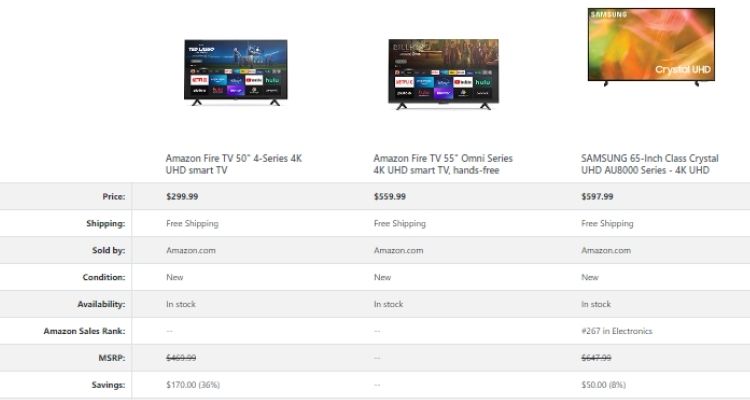
A completely free online tool that lets you compare up to 10 Amazon products side-by-side, including across different countries (US, UK, CA, DE, FR, IT, ES, etc.) and even against eBay listings.
How to use PlusCompare (step-by-step):
- Go to pluscompare.net (or just Google “PlusCompare”).
- Type your keyword (e.g., “wireless earbuds under $100”) in the search bar or use the Advanced Search for more control.
- On the results page, click the small “+” button next to each product you want to compare (up to 10 items).
- Selected items instantly appear in the “Compare List” panel on the right.
- When ready, click the big Compare button at the bottom of the list.
- You’ll get a clean, detailed comparison table with all important differences highlighted (price, reviews, dimensions, features, etc.).
Keepa Chrome Extension
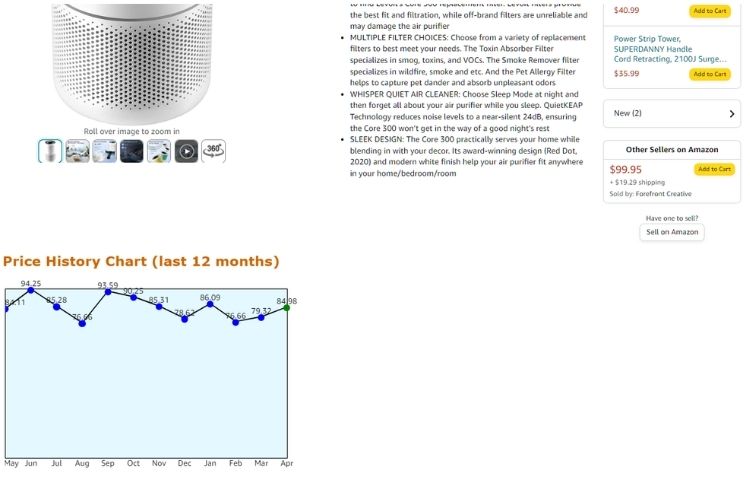
The world’s most popular Amazon tracking tool (over 10 million users) that adds detailed price history charts, sales-rank graphs, and deal alerts directly onto every Amazon product page, and lets you overlay and compare price trends of multiple products in one click.
How to use Keepa (step-by-step):
- Adds price history graphs directly on every Amazon product page.
- Let’s you overlay and compare price charts of multiple products in the same browser tab.
- Shows camelcamelcamel-style historical pricing, sales rank, and deal alerts.
Amazon Data Scraper
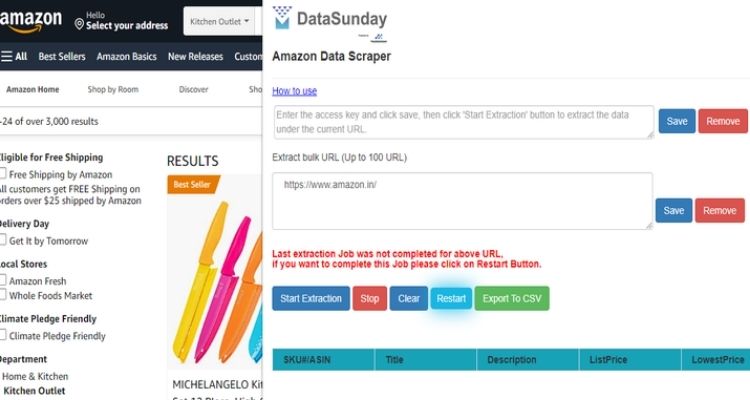
Amazon Data Scraper is a popular free Chrome extension that instantly extracts full product details (price, sales rank, features, reviews, images, ASIN, and more) from any Amazon page and exports everything to Excel/CSV with one click.
How to Compare Products Using an Amazon Data Scraper:
- Install the extension from the Chrome Web Store (search the exact name or use the official link).
- (Optional but recommended) Narrow your Amazon search as much as possible, use filters for brand, price range, Prime only, star rating, etc. The tighter the list, the better your comparison will be.
- Open any product page or stay on the search/category results page.
- Click the extension icon in your browser toolbar → hit Start, Scrape, or Export (name varies by tool).
- Wait a few seconds, and the tool automatically grabs every visible product.
- Download the data as a CSV or Excel file with one click.
- Open the file in Excel or Google Sheets and instantly get a perfect side-by-side comparison table containing:
- Current price & any discounts
- Sales rank (Bestseller Rank)
- Star rating + total reviews
- Bullet points & key features
- Dimensions, weight, and color options
- Seller name & fulfillment type (FBA/FBM)
- Images (URLs)
- ASIN, UPC/EAN
- Sort, filter, or highlight the winner in seconds (e.g., “lowest price + highest rating + Prime”).
Create A Professional Comparison Chart On Your Own Website/Blog
If you run a blog, review site, or are an Amazon affiliate, creating fully customized comparison tables is a powerful way to showcase products. Here’s a quick look at some popular tools to help you build these charts:
| Tool / Plugin | Main Steps | Best For |
|---|---|---|
| AAWP (Amazon Affiliate WordPress Plugin) | 1. Install the plugin in WordPress 2. Connect your Amazon Associates account & API keys 3. Go to AAWP → Tables → Add New 5. Choose rows (price, rating, pros/cons, buttons, etc.) 4. Add products by ASIN or search 6. Customize design & insert shortcode into your post | WordPress bloggers |
| AzonPress | 1. Install plugin 2. Connect Amazon API 3. Click “Add New Comparison Table.” 4. Search & add products 5. Edit features & design 6. Copy shortcode | Affiliates |
| TableLabs | 1. Go to tablelabs.com 2. Drag Amazon products into the table 3. Edit columns, add ✓/✗, highlight best product 4. Copy embed code | Review sites |
| Lasso | 1. Install the Lasso plugin 2. Create a new “Table” display 3. Add Amazon links 4. Customize & embed | Affiliate marketers |
Essential Amazon Listing Factors to Check
These five factors decide everything: price, quality, speed, and risk. Check them quickly, and you’ll never overpay or regret a purchase.
Product Specifications & Features
Buyers always compare the actual product details before adding to the cart. Therefore, you start every bullet point with numbers (20-hour battery, 6.7-inch OLED, 5000 mAh, IP68, etc.) and avoid vague words.
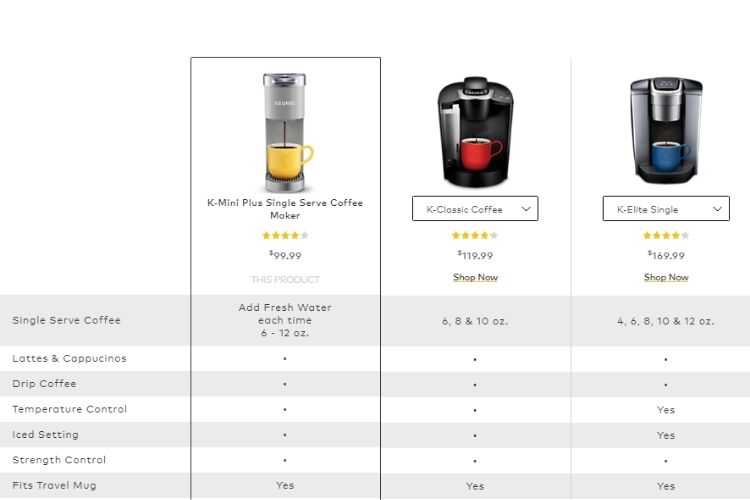
You add an A+ comparison chart with ✓/✗ marks against top competitors and use infographic images to show size, weight, and ports. When your specs are clearer and more visual than rivals, conversion rises 15-30 %.
Customer Reviews & Ratings Analysis
Buyers always check reviews before purchasing. Therefore, you must legally request reviews through Buyer-Seller Messaging and automated Follow-up Emails, respond to every negative review within 24 hours professionally (many customers upgrade 1-star to 4-5 stars after a good reply), and monitor ReviewMeta to report fake reviews that hurt your score.
Seller Reputation & Fulfillment Options
A 98-100% feedback score over the last 12 months, plus an Order Defect Rate under 1% directly decides whether you appear in the Buy Box. That’s why you enroll in FBA for every eligible product and, when using FBM, keep the Late Shipment Rate below 4% and Valid Tracking Rate above 95%.
Customers click “Add to Cart” instantly when they see the Prime badge or “Ships from and sold by [your trusted store name]”.
Shipping Costs & Delivery Times
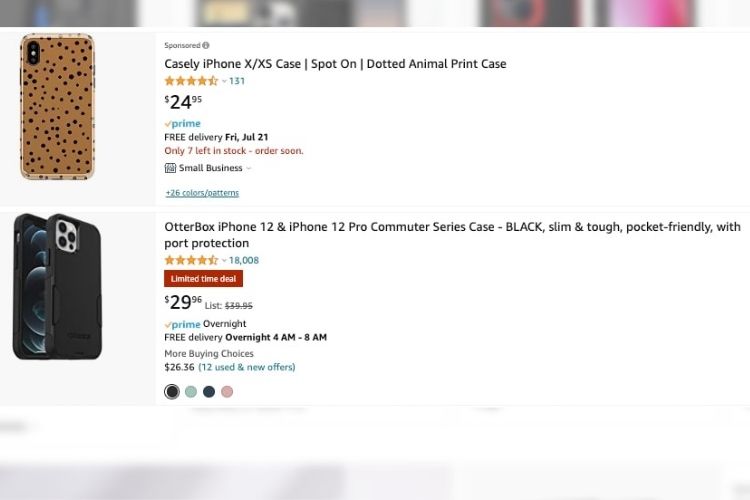
Buyers always calculate the final landed price (item + shipping). For this reason, you use FBA or an Amazon Partnered Carrier so customers see “FREE Delivery” (for Prime) or very low fees, set handling time to 1 day or same-day, and distribute inventory across multiple regions. One late shipment damages your metrics and loses the Buy Box immediately.
Return Policies & Warranties
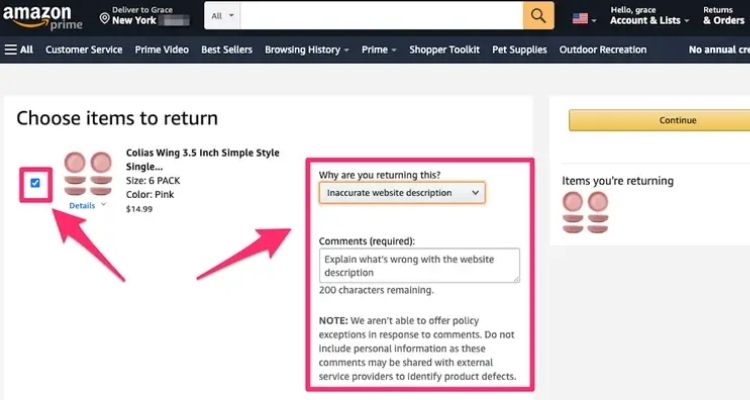
Buyers tend to hesitate if returns look complicated. Therefore, you clearly state “30-day hassle-free returns with prepaid label” in bullet points and A+ Content. For electronics and high-value items, you highlight the manufacturer’s 1-3 year warranty and include a quick registration guide inside the box.
>>> Read more: How To Find the Best-Selling Products On Amazon For Business
FAQs About How To Compare Products On Amazon
Amazon’s built-in tool shows three to five similar items. The shopping cart method lets you view ten to twenty products easily. Extensions allow unlimited comparisons.
Different sellers set their own prices. Variations come from condition (new or used) and fulfillment type (FBA or FBM). Always check seller ratings and choose the lowest total price from a trusted source.
You can trust verified purchases and recent reviews. Use ReviewMeta to remove fake ones for a more accurate rating.
Amazon’s native tools work only for similar items. Install Chrome extensions like E-Commerce Side-to-Side or the 4Seller tool, or use the cart and take manual notes.
Reputable tools from the Chrome Web Store (Keepa, CamelCamelCamel, Jungle Scout) with four stars or higher and thousands of downloads are safe. Avoid unknown extensions.
Get Professional Help from Megaficus
Mastering how to compare products on Amazon is the single skill that separates broke buyers from smart shoppers and losing sellers from Buy Box winners. With the exact methods in this guide, you’ll never overpay, never lose to hidden competitors, and never waste hours guessing again.
Ready to turn this knowledge into real results? The Megaficus team helps thousands of buyers save money, and sellers scale to 7-figures every year. Drop a message on our website and let’s make Amazon work for you.