
What’s the simplest way to get your products live on Amazon? Learning how to list products on Amazon starts with knowing which listing method to use and what information Amazon requires. In this guide from Megaficus, you’ll learn clear, practical steps to add your products correctly, whether you’re joining an existing ASIN or creating a new listing, so you can launch quickly and confidently.
Quick Summary
- How to add your product to an existing ASIN on Amazon: Use this method when your product already exists in Amazon’s catalog, and you only need to add your offer (price, stock, fulfillment).
- How to list new products on Amazon: Choose this option when your product is not yet listed on Amazon and you need to create a completely new product detail page.
- Tools you can use to list products on Amazon: Ideal when you sell on multiple channels or want to automate listing creation and sync inventory across platforms.
When Should You Create A Brand-New Amazon Listing?
Amazon’s policy allows only one listing for each product, so sellers cannot create duplicates. If you are selling an item with a new and unique product identifier, such as a UPC or EAN, you must create a brand-new listing.
However, if the product already exists on Amazon, you should join the current listing instead of making another one. This approach helps keep Amazon’s search results accurate and prevents multiple listings for the same product.
Information Required To List A Product On Amazon
To list a product on Amazon, sellers need to prepare several essential pieces of information:
- Product identifier: UPC, EAN, ISBN, GTIN, or a GTIN exemption
- Product title: Clear, formatted correctly, within Amazon’s character limit
- Product images: One main white-background image plus additional images; minimum 1,000 px for zoom
- Bullet points: Short statements highlighting key features and benefits
- Product description: Detailed information with relevant keywords
- Category & Subcategory: Accurate product classification
- Variations (if applicable): Colors, sizes, scents, or other options under a parent-child structure
- Brand & Manufacturer: Correct brand name and manufacturer details
- Price & Quantity: Selling price and available inventory
- SKU: Seller’s internal product code
- Compliance documents: Required certificates, invoices, or approvals for gated categories
How To List Products On Amazon
Before adding products, you need to know whether your item already exists on Amazon or is completely new. The following guide will help you choose the right method and list your products correctly.
How To Add Your Product To An Existing ASIN On Amazon
If you’re selling an item that’s already available on Amazon, you don’t need to create a brand-new listing. Instead, you can connect your offer to the existing product page. Below is a step-by-step guide to help you do it correctly.
Step 1: Locate The Product You Want To Sell
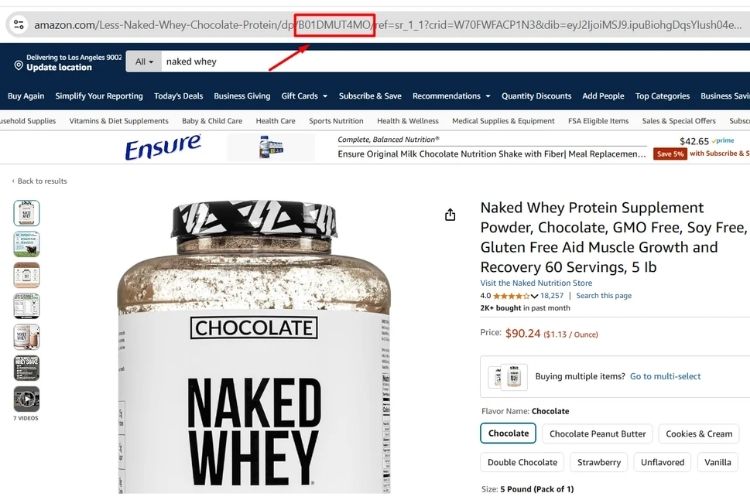
In your Amazon Seller Central account, go to Add Products and search for the item you plan to list. You can enter either the product name or its ASIN in the search bar, then click Search to pull up the listing.
An ASIN is Amazon’s unique identifier assigned to each product in its catalog. You can find it directly in the product page URL or under the Product Details section.
Amazon also gives you a few additional ways to search for items:
- Product image: Upload a photo of your item so Amazon can match it with similar products in its catalog.
- Product IDs: Look up products using multiple identifiers such as UPC, EAN, ISBN, or ASIN.
- Web URL: Create a listing using your product’s existing webpage. For best accuracy, avoid links from other retail websites.
You’ll also see two more options: a blank form for creating a new standalone listing from scratch, and bulk spreadsheets for uploading multiple products at the same time.
Step 2: Choose The Correct Product
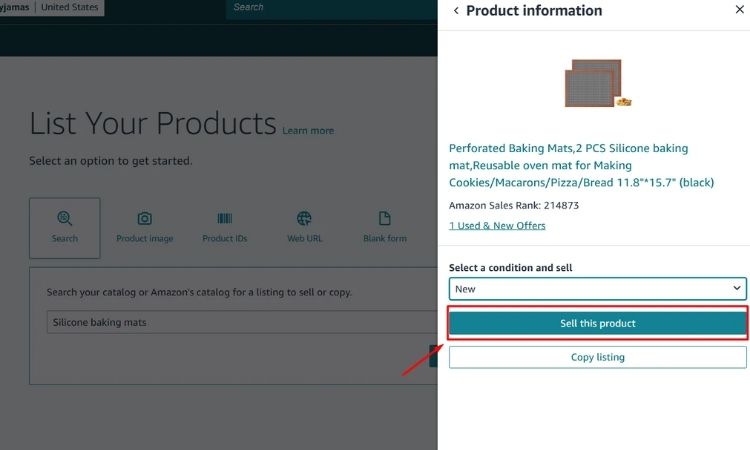
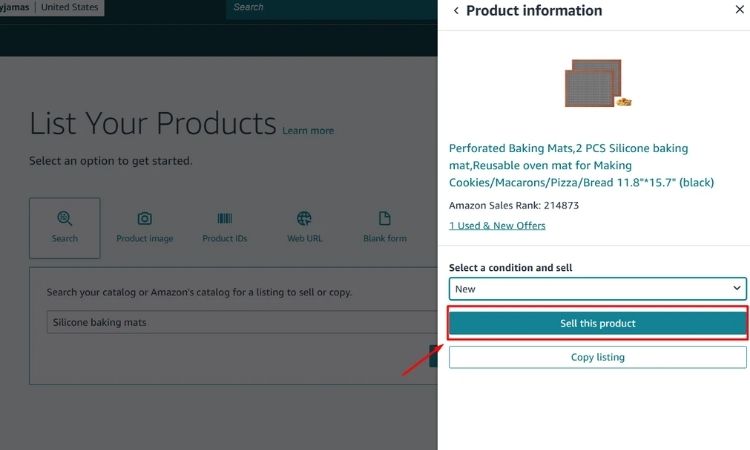
After you run your search, Amazon will display a list of items that match your query. From here, select the product that best matches what you intend to sell. For example, when you searched for “silicone baking mats”, Amazon showed multiple listings for different brands and sizes. You simply pick the one that matches your item.
Once you choose a listing, Amazon will ask you to specify the item’s condition, such as New or Used. Some categories do not allow conditions like Collectible, Refurbished, or certain types of Used, so these options may not appear.
At this stage, you may see one of two prompts:
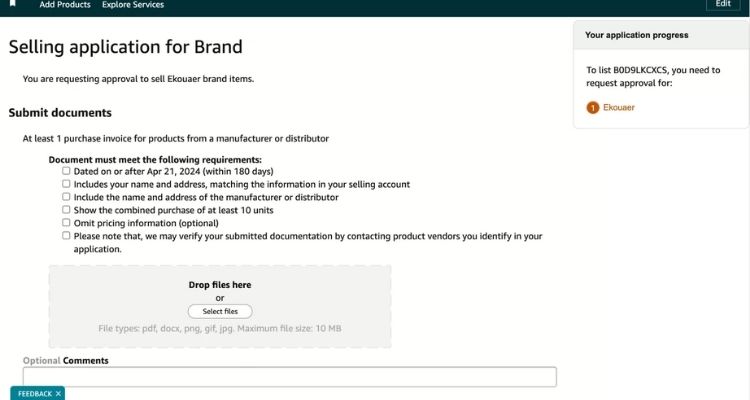
- Approval required: Some brands and categories are restricted. If your item falls under one of these, click Apply to sell and submit the necessary documents for Amazon to review your request.
- Approval not required: If no restrictions apply, simply click Sell this product to continue with the listing process.
Step 3: Submit Documents For Approval
If the product you want to sell requires brand or category approval, Amazon will ask you to upload the necessary documents before you can proceed.
To complete this step, sellers prepare and submit the following:
- Purchase invoice from the manufacturer or authorized distributor
- Supplier information showing the source of the product
- Brand or category approval documents, if the item falls under a gated category
Once uploaded, Amazon may contact your supplier to confirm the information you provided, so make sure all details are accurate and up to date.
If you are a brand owner, Amazon may request additional steps:
- You can apply for a trademark through Amazon’s IP Accelerator, which helps you access the Brand Registry faster.
- If you already have a registered trademark, you can enroll directly in the Amazon Brand Registry to protect your brand and gain more control over your listings.
Step 4: Add Your Offer Details
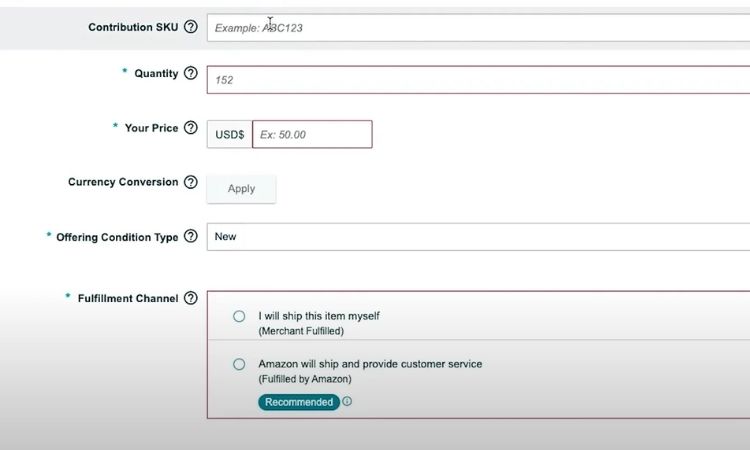
After you locate the existing listing or receive approval for restricted brands or categories, you can proceed to enter your offer details.
At this stage, you need to provide all the required offer details by filling in the following fields:
- SKU (optional): Your internal product identifier. If you leave it empty, Amazon will create one for you.
- Quantity: The number of units you want to make available.
- Price: Your selling price for this offer.
- Fulfillment channel: Choose how the order will be fulfilled.
You can select one of the following fulfillment methods:
- Merchant Fulfilled (FBM): You ship the orders yourself, so you must enter the quantity you have on hand.
- Fulfilled by Amazon (FBA): Amazon manages storage, packing, and shipping. If you choose FBA, you will be directed to prepare an FBA shipment.
Once all details are completed, scroll to the bottom and click Save and Finish. Your offer will then appear in the Manage Inventory section. If you’re using FBA, the listing will go active once Amazon receives your stock.
How To List New Products On Amazon
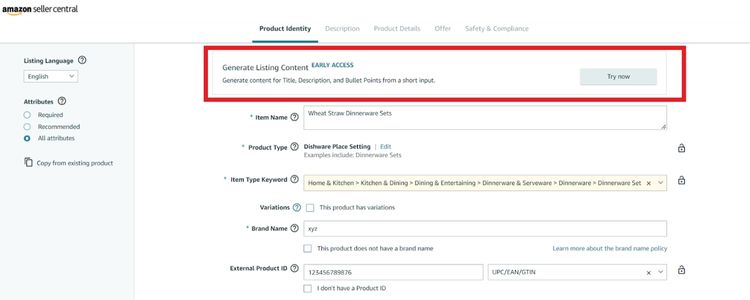
If your product isn’t already part of Amazon’s catalog, you’ll have to build a new listing from scratch. This is especially common for private-label items or unique products that haven’t been sold on the platform before. Amazon also offers tools like Generate Listing Content to help you craft optimized titles, bullets, and descriptions.
Before moving forward, make sure to verify that no identical product page already exists. Amazon does not allow duplicate listings, and submitting one may result in the page being removed or restricted.
Step 1: Open The Add Products Page In Seller Central
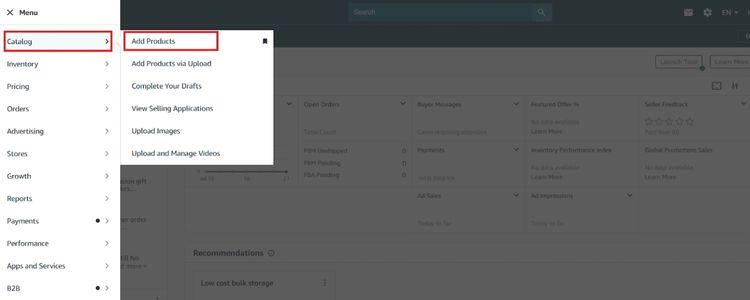
Log in to your Seller Central account. From the main menu, go to Catalog > Add Products.
On the Add Products page, select the Blank Form option above the search bar, then click Start to begin creating your new listing.
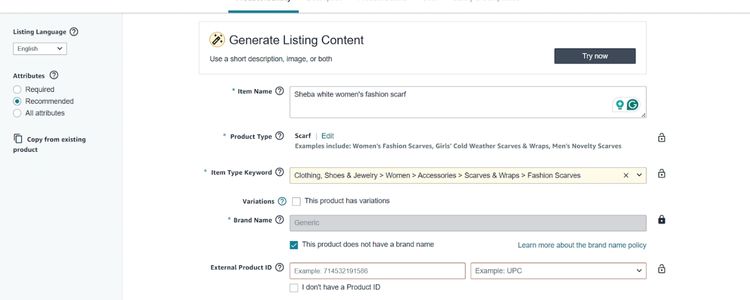
Step 2: Select The Product Type And Category
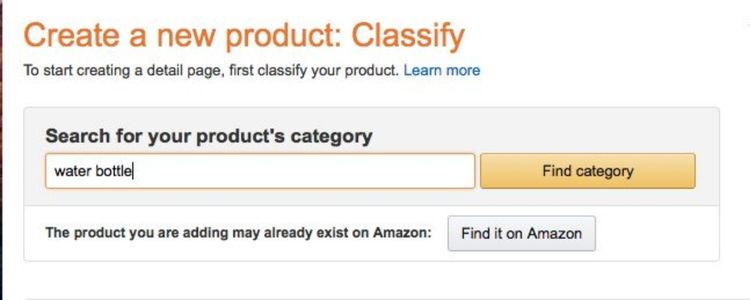
Enter your product name in the search field and review the primary product category that Amazon automatically assigns. If the suggested category isn’t accurate, you can manually choose a more suitable one in the “Product type” field. Once everything looks correct, click “Next”.
Step 3: Provide Your Brand Name and Product ID
Enter your brand name and the required product ID, then click “Next.”
- If you don’t have a product ID (UPC/EAN/ISBN), select “I don’t have a product ID”. Amazon will guide you through applying for a GTIN exemption, which typically takes about one hour.
- If you’re selling a branded product, Amazon may require brand authorization. Click “Apply to Sell” and submit the required documents.
- If your product is unbranded, simply tick “This product doesn’t have a brand name”.
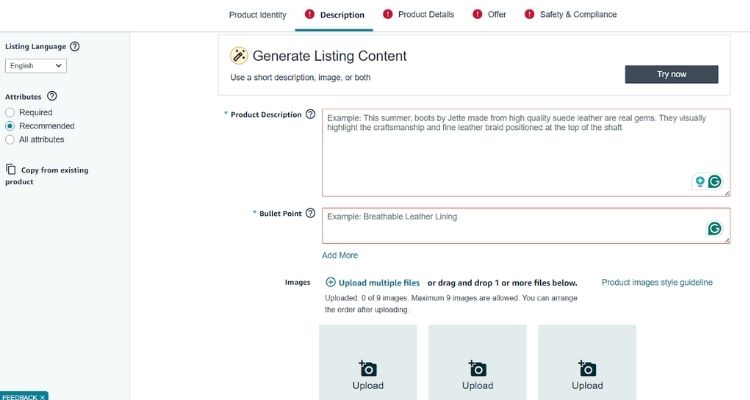
Step 4: Add Your Product Content And Images
Provide the required listing details, including the product description, bullet points, and product images, then click “Submit”. If Amazon requests any additional information, follow the prompts and supply the necessary details.
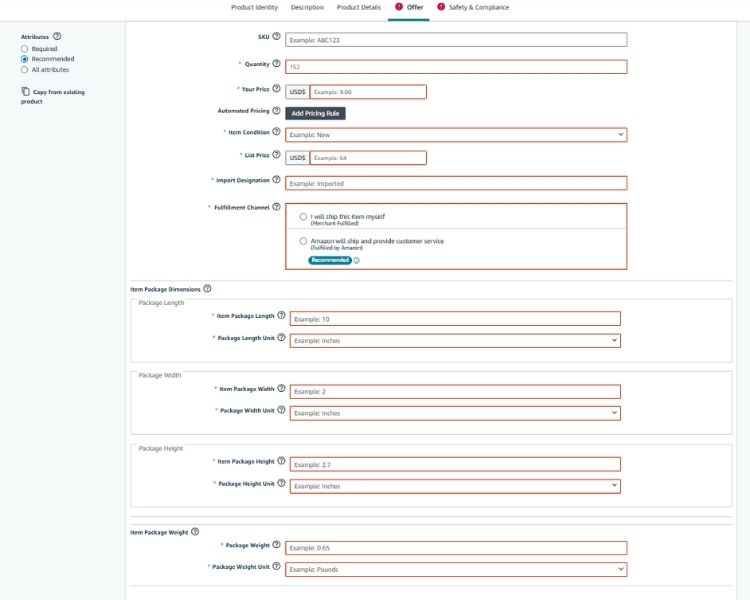
Step 5: Add Your Offer Details And Submit
Enter your offer information, including SKU, available quantity, product price, item condition, and your chosen fulfillment method (FBA or FBM). Next, provide the package dimensions and weight of your product, then click “Submit”.
Tools You Can Use To List Products On Amazon
Besides adding products manually in Seller Central, you can also use supporting tools to speed up the listing process, reduce errors, and sync inventory across multiple sales channels. Below are two practical options you can consider, depending on how you manage your business.
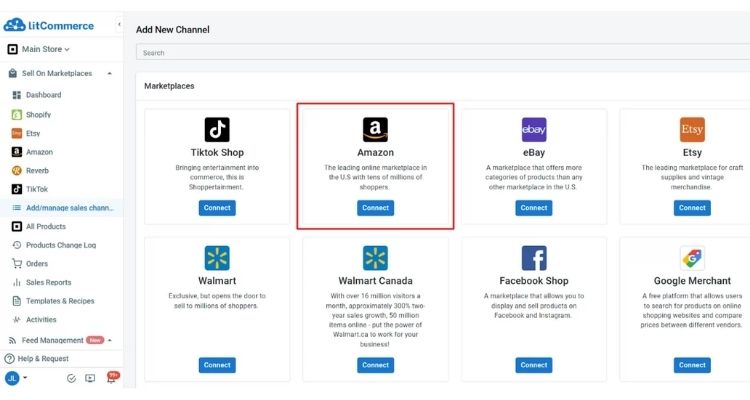
List Products On Amazon Using LitCommerce
LitCommerce is a multichannel listing tool that helps you create Amazon listings directly from your online store (Shopify, Wix, WooCommerce, BigCommerce, etc.) without manual copy-pasting. It’s ideal for sellers who operate multiple channels and need real-time inventory sync.
The steps below show how the process works from start to finish:
- Connect your online store and Amazon to the LitCommerce dashboard.
- Import products automatically from your store into LitCommerce.
- Select the products you want to list and send them to Amazon as drafts.
- Edit and optimize titles, descriptions, ASINs, attributes, or GTIN exemptions inside the LitCommerce listing editor.
- Publish to Amazon once all required fields meet Amazon’s listing standards.
Add Products Using The Amazon Seller App
The Amazon Seller App allows you to list products directly from your mobile device. This is the fastest option for sellers who prefer on-the-go management or frequently add new items.
You can also list products directly from your phone using the Amazon Seller App, which allows you to create new listings quickly and manage them on the go:
- Open the app and sign in to your seller account.
- Tap Add a Product.
- Search for any product in the search bar.
- Tap. Don’t see your product? Create a new listing.
- Select the appropriate product category.
- Enter product information and pricing.
- Choose the fulfillment method (FBA or FBM).
- Review all details and submit the listing.
How to Optimize Your Amazon Listing
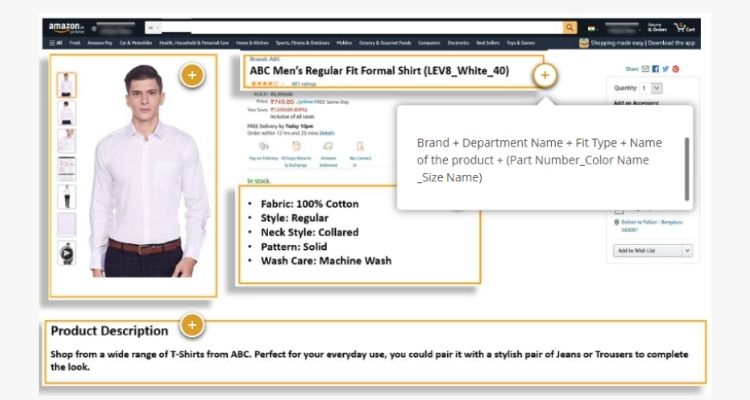
To improve visibility and conversions, here are the key listing elements you should optimize:
- Optimize product title: Include primary keywords, brand name, key features (size, material, color) while keeping it readable.
- Improve bullet points & description: Highlight benefits, specs, and differentiators. Keep bullets concise and scannable.
- Add high-quality product images: Use 1000×1000 px or higher, white background for the main image.
- Use relevant keywords: Perform keyword research and add high-intent terms naturally in your title, bullets, and description.
- Optimize backend search terms: Include additional relevant keywords (no repetition, no commas), maximum 249 bytes.
- Enhance pricing & offer details: Ensure competitive pricing, add coupons or deals if possible, and keep stock levels stable.
- Strengthen product reviews and ratings: Encourage organic reviews via excellent customer service and the Amazon-request-a-review feature.
>>> Read more: Amazon Listing Optimization: 7 Strategies to Boost Sales
FAQs About How To List Products On Amazon
Yes. You can create listings without Brand Registry, but you may need brand authorization or a GTIN exemption depending on your product.
Not always. If you don’t have a UPC/EAN/ISBN, you can apply for a GTIN exemption.
Go to Manage Inventory in Seller Central → find your product → click the ASIN or “View on Amazon”.
Yes, as long as the product doesn’t already exist in Amazon’s catalog and the category doesn’t require approval.
No. Listing a product is free. You only pay selling fees (referral fees, FBA fees, etc.) once you make sales.
Get Professional Help from Megaficus
Mastering how to list products on Amazon is essential for launching smoothly, avoiding listing errors, and giving your products the best chance to rank and convert. When sellers understand the right listing method, provide accurate data, and optimize their product pages from the start, they build a strong foundation for visibility and long-term growth.
If you want expert support in setting up high-quality listings or building a streamlined listing workflow that scales with your business, the team at Megaficus is ready to help you every step of the way.