
Have you ever felt trapped at home waiting for a package that never seems to arrive when it is actually convenient for your schedule? Figuring out how to change the delivery date on Amazon is the ultimate hack for busy professionals who need to align their logistics with their lifestyle. Take back control of your time by following this definitive guide from Megaficus now.
Quick Summary
- Check Status: Modifications are only possible while orders are in the “Preparing for Shipment” phase.
- Order Portal: Use the “Returns & Orders” section to find the reschedule options for your specific items.
- Carrier Apps: Utilize UPS My Choice or FedEx Delivery Manager if the package has already left Amazon.
- Amazon Day: Consolidate multiple weekly orders into a single delivery day to ensure you are home.
What to Prepare Before Changing the Delivery Date on Amazon?
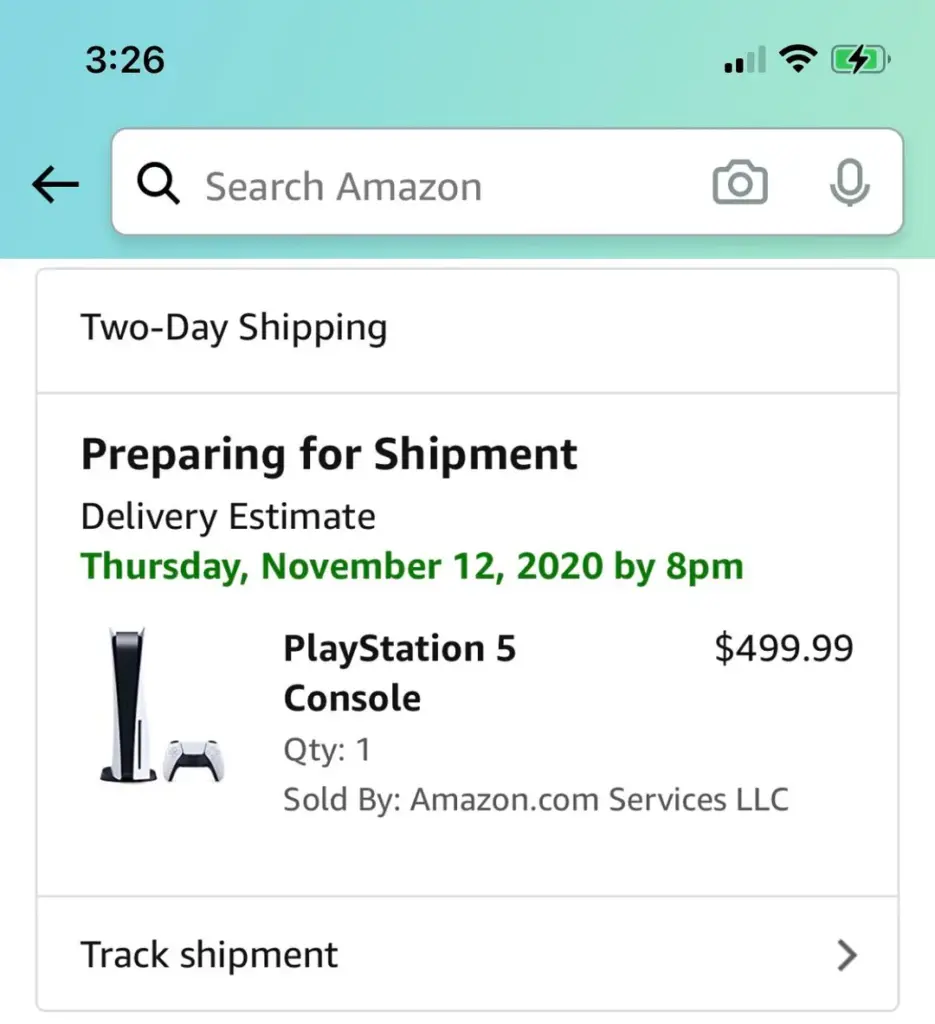
Effective preparation is the first step toward successfully modifying your shipping schedule without facing technical errors. You must first verify that your specific item is still within the “Preparing for Shipment” phase on your dashboard. Gathering your account credentials and order number will also help you navigate the interface much faster.
Initial Account and Order Verification
Before you dive into the settings, ensure you are logged into the correct account used for the purchase. Many users manage multiple profiles and often struggle to find specific transactions because they are in the wrong account.
Checking Eligibility for Rescheduling
Not every product sold on the platform is eligible for a date change due to various logistics constraints. Items fulfilled by third-party sellers might require direct communication with the merchant rather than a simple button click. If the “View or edit order” option is missing, it is a clear sign that the package is already processed for final transit and delivery.
How to Change Delivery Date on Amazon Step-by-Step?
Once you have confirmed that your order is eligible for a change, the actual process is quite straightforward. The platform is designed to give users flexibility, provided they act before the item leaves the primary warehouse. This prevents any confusion for the delivery drivers who are handling your valuable packages in the local area.
Accessing the Returns and Orders Section
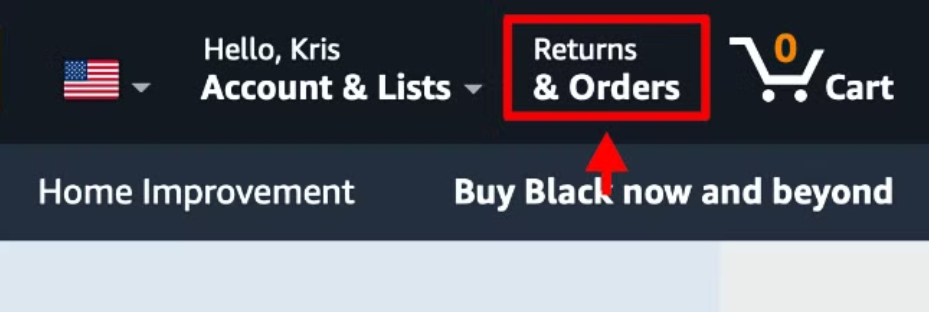
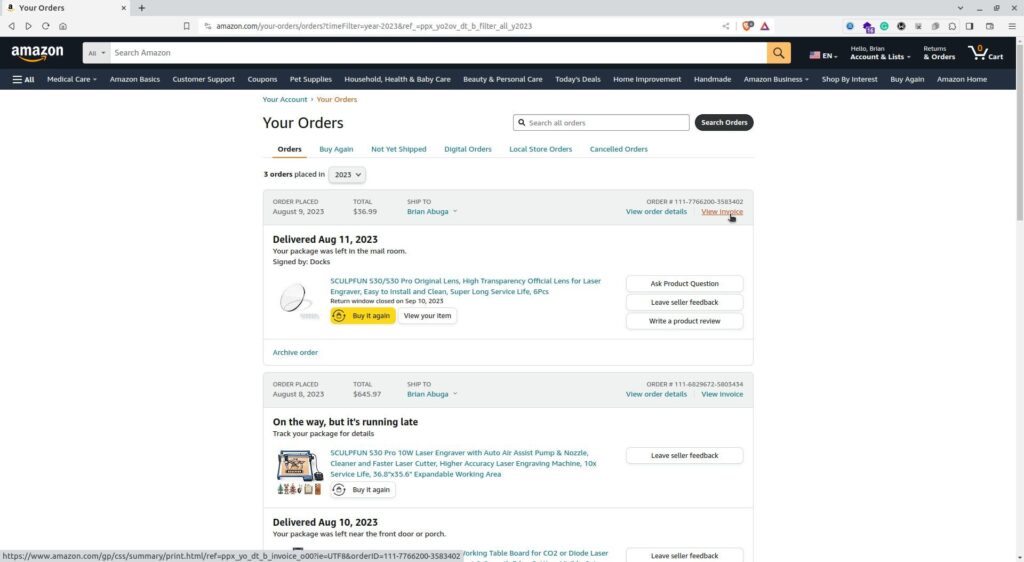
You can start by clicking on the “Returns & Orders” link located at the top right of your homepage. This helpful section serves as the main hub where you can view every transaction you have made over the last few months.
Right after you arrive, you will see a list of your recent purchases and currently pending shipments waiting for you. Finding the specific item you want to reschedule and clicking “Order Details” will reveal all your editing options.
Finding the Target Item for Rescheduling
When you’re finally inside your dashboard, you might find it helpful to scroll through the list to find your target order. Having your order number ready is a great trick to help you quickly identify the right transaction in your history.
Correct identification ensures that you are modifying the exact package you intended to change for your busy day. This simple check is especially useful for anyone managing several active shipments at the same time.
Selecting the View or Edit Order Option
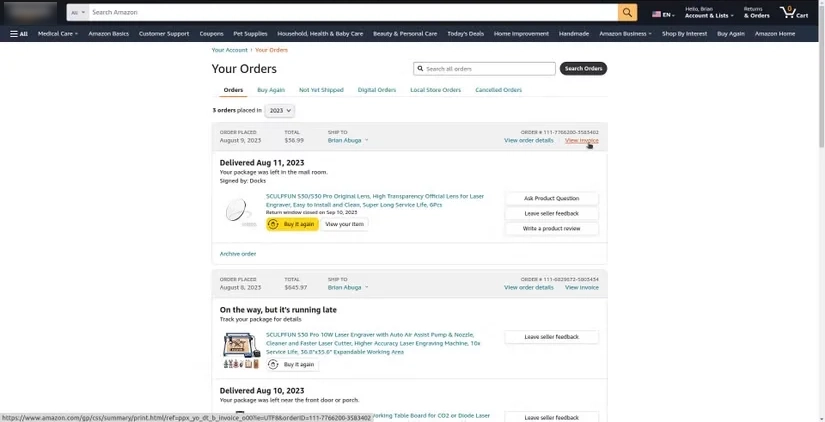
After you have located your shipment, you can simply click the “View or edit order” button next to that item. This opens up a more detailed view where you can see your current arrival estimate and other logistics info.
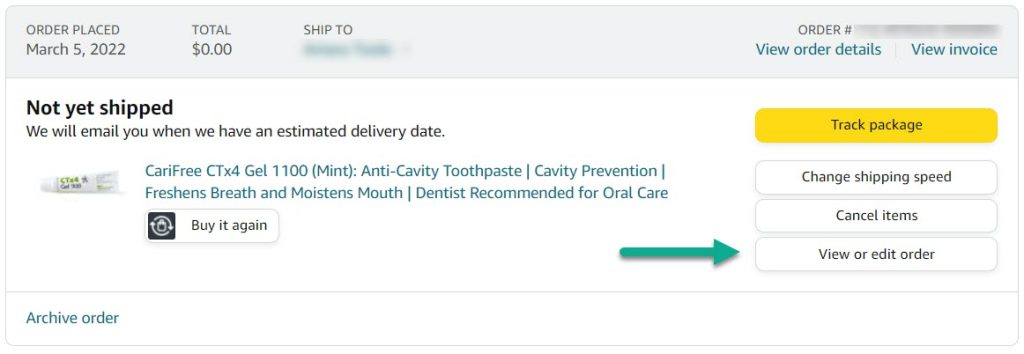
If your item is eligible for a quick change, you should see a specific button dedicated to rescheduling. If you do not see this option, it likely means the package has already moved too far into shipping.
Choosing a New Delivery Date Window
Within your order details, you can click “Change” next to the delivery date to pick a better window for you. A handy digital calendar usually appears to show you exactly which dates your carrier can realistically support.
You can then choose a new day that fits your plans, such as a Saturday when you are home to relax. This flexibility is wonderful for aligning your packages with your own personal productivity goals.
Saving and Confirming Your Changes
To finish up, you just need to click the save button to confirm your update and wait for the confirmation. Your screen should refresh to show the new date, and you will get an automated email for your records. Seeing this “Order Updated” message is the best way to know the center has received your new request.
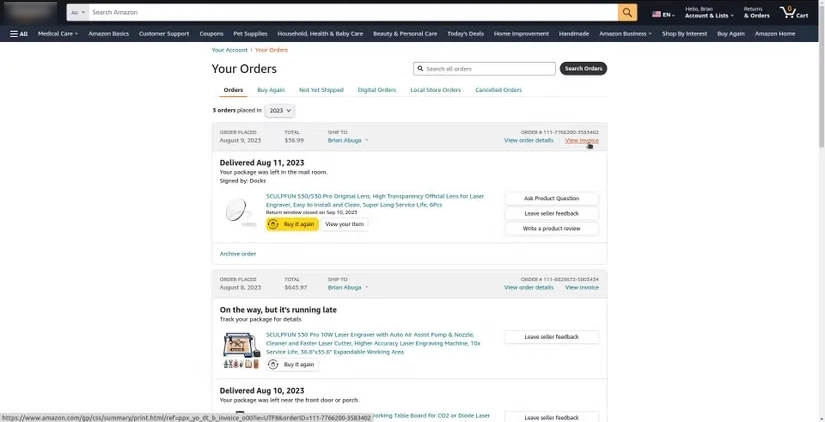
We also advise that it’s always a good idea to keep an eye on your dashboard to ensure everything stays on track.
What are the Common Mistakes and Troubleshooting Tips for Delivery Changes?
Even with a clear guide, you might encounter technical hurdles that prevent you from completing the date change. Understanding why these issues occur can help you find alternative solutions before they become major logistical headaches for your daily business operations.
Why the Change Button Might Be Missing
The most frequent complaint from shoppers is the sudden disappearance of the modification button on their order page. This typically happens because the fulfillment center has already packed the item and loaded it onto a truck. You must then wait for the tracking number to become active so you can try external carrier interventions to secure your package successfully.
Handling Third-Party and Shipped Orders
If your package is already in transit, you should look toward the carrier’s specific mobile applications for help. Services like UPS My Choice or FedEx Delivery Manager allow you to request a temporary hold at a facility. So we really suggest you use these external apps to give you a final chance at control.
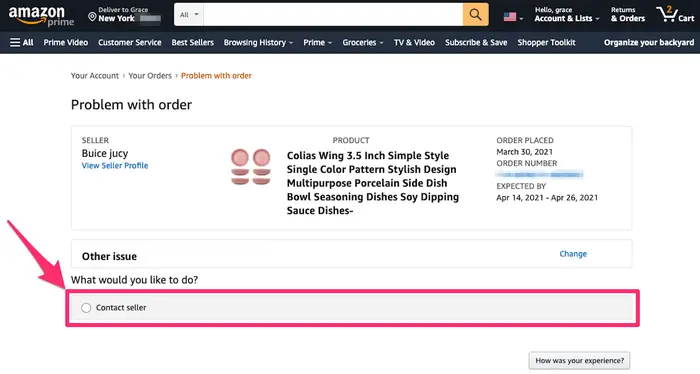
Imagine you ordered a high-end camera from a third-party seller on the Amazon marketplace for your business. Because the seller uses their own courier, the “Change” button on your dashboard might never actually appear. You would need to message the seller directly through the “Contact Seller” link to request a new date before the shipping label is officially printed.
What are the Best Practices for Managing Your Amazon Deliveries?
Long-term success with online shopping requires more than just knowing how to fix a single order’s arrival date. Implementing a few strategic habits can streamline all your future deliveries and reduce the need for manual changes. By utilizing built-in features, you can take full control of your doorstep and ensure maximum efficiency for every shipment you receive.
Utilizing Amazon Day for Better Consolidation
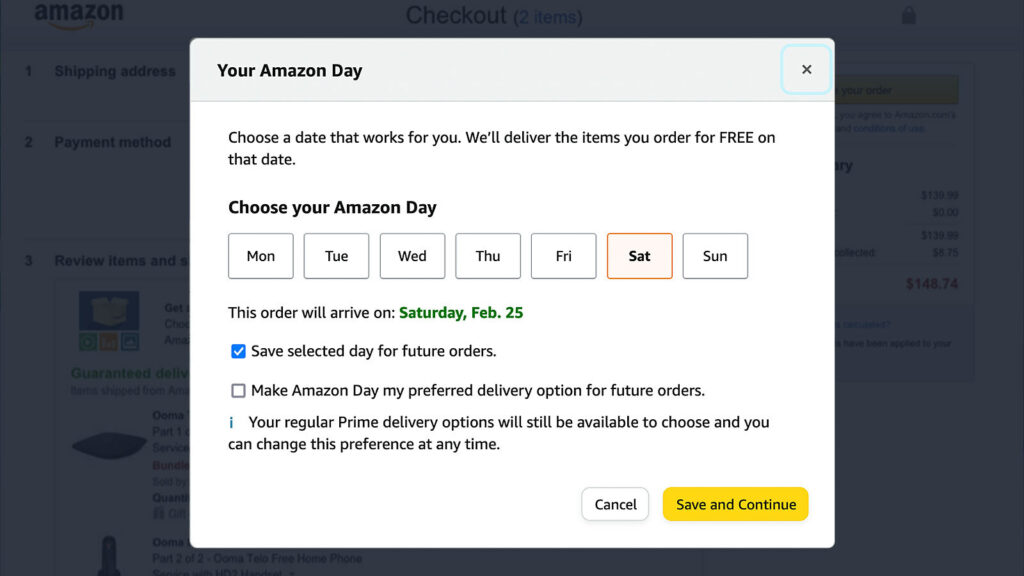
Amazon Day is a powerful feature that lets you choose a specific day of the week for arrivals. Instead of receiving multiple boxes throughout the week, everything is held and delivered in one single trip. You can set this as your default preference to simplify your life and stop worrying about daily deliveries. This strategy is perfect for those with very tight schedules.
Enabling Real-Time Notifications and Monitoring
Staying informed is your best defense against delivery mishaps and the need for late-stage rescheduling. You should enable push notifications within the mobile app to get instant alerts on any status changes. Checking your “Subscribe & Save” dashboard once a week is also a very smart habit. This gives you plenty of time to skip or delay items before they are processed.
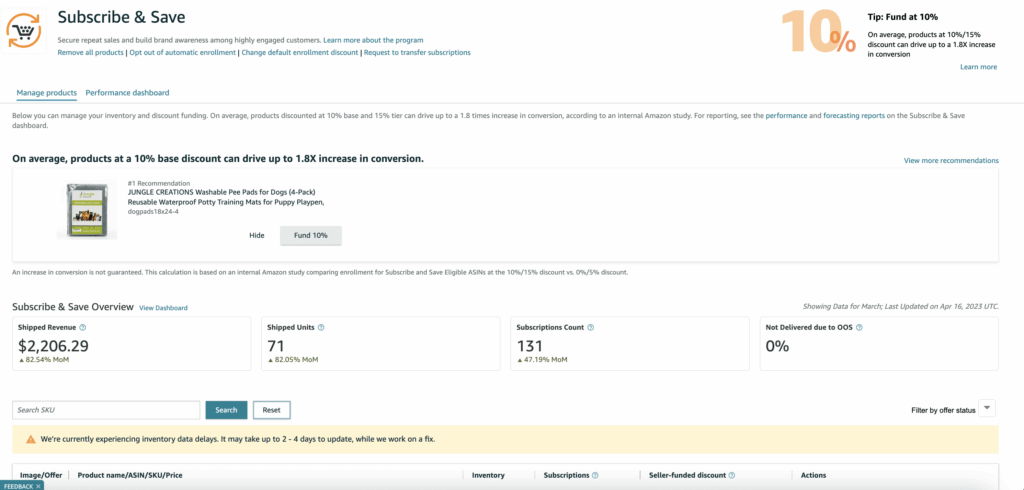
For example, you’re a small business owner who often orders office supplies every month using the recurring subscription model. By checking your dashboard on the first of the month, you can delay paper shipments if stock is full. This also prevents the office from becoming cluttered with unnecessary boxes that were sent when you forgot to check.
>> Read more: Amazon Inventory Management: Ultimate Guide & Top Tools
Frequently Asked Questions about How to Change the Delivery Date on Amazon
No, once an item is shipped, you cannot change the date through Amazon, though you may contact the carrier directly. This is because the physical item is already in the hands of a third-party logistics company like UPS or FedEx.
Generally, no, but switching to a faster shipping speed during the reschedule process may incur some additional fees. Most standard rescheduling requests will not impact your wallet if you stick to the available free delivery windows.
This depends on your location and the specific carrier assigned to your package, as some rural regions lack weekend service. When you open the calendar, any available weekend dates will be clearly highlighted for you to select or grayed out.
This usually occurs because the item is too close to being shipped or is handled entirely by a third-party seller. In these scenarios, the digital link between the website and the physical box is effectively severed for editing.
There is no hard limit, provided the order has not yet entered the final shipping phase at the fulfillment center. However, frequent changes might eventually cause a glitch or a delay in the overall processing of the order.
Get Professional Help from Megaficus
Understanding how to change the delivery date on Amazon is a vital skill for anyone who values time. By following the steps outlined in this guide, you can take control of your logistics and avoid missed packages. Whether you are managing a household or a business, these tools provide the flexibility you need.